Accessing Your Courses Using the Instructor Portal
Accessing Your Courses Using the Instructor Portal
Learn how to seamlessly navigate from your instructor dashboard to the MSi K-12 platform. This guide provides the necessary steps to locate your cloned courses and securely log into the external learning environment.
Viewing and Setting Login Information
1. Navigate to https://gomsi.net/instructor
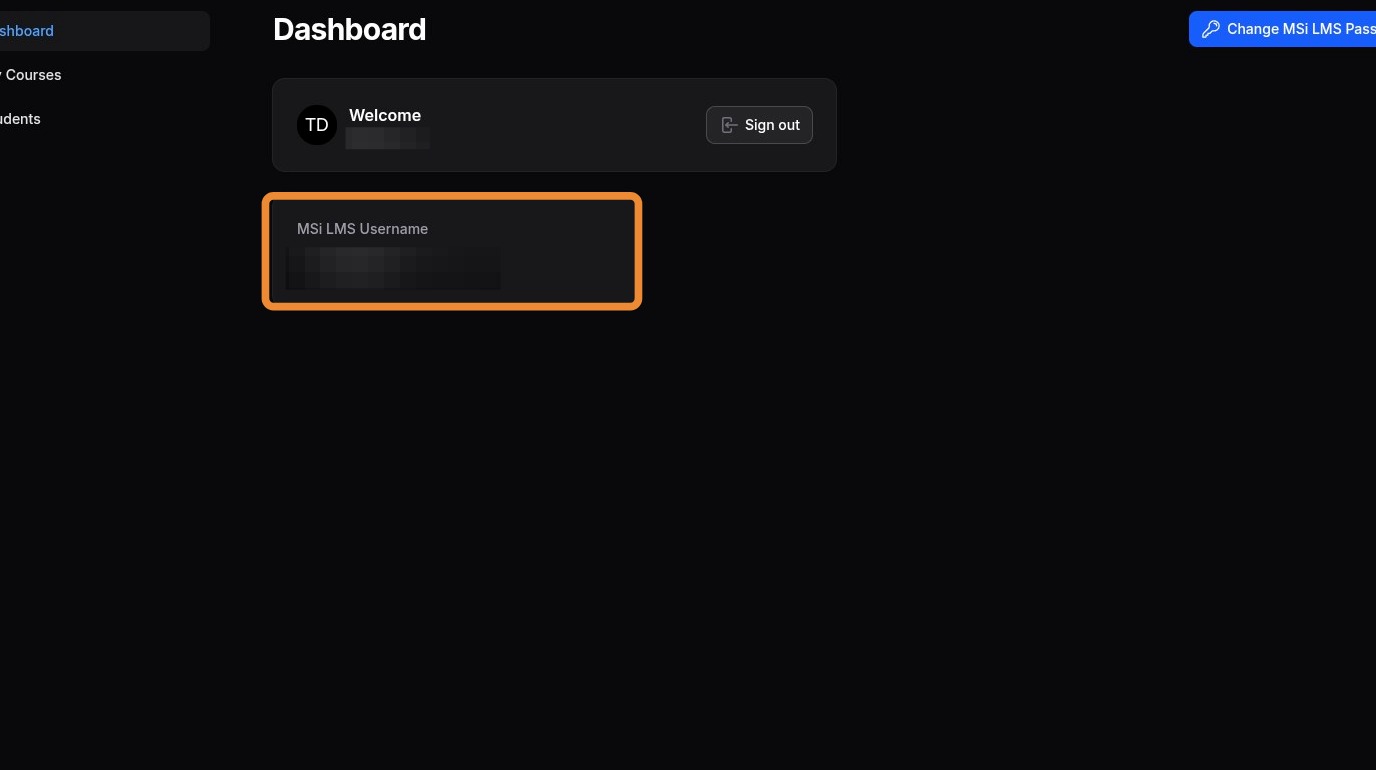
2. The MSi LMS Username box contains your MSi LMS username
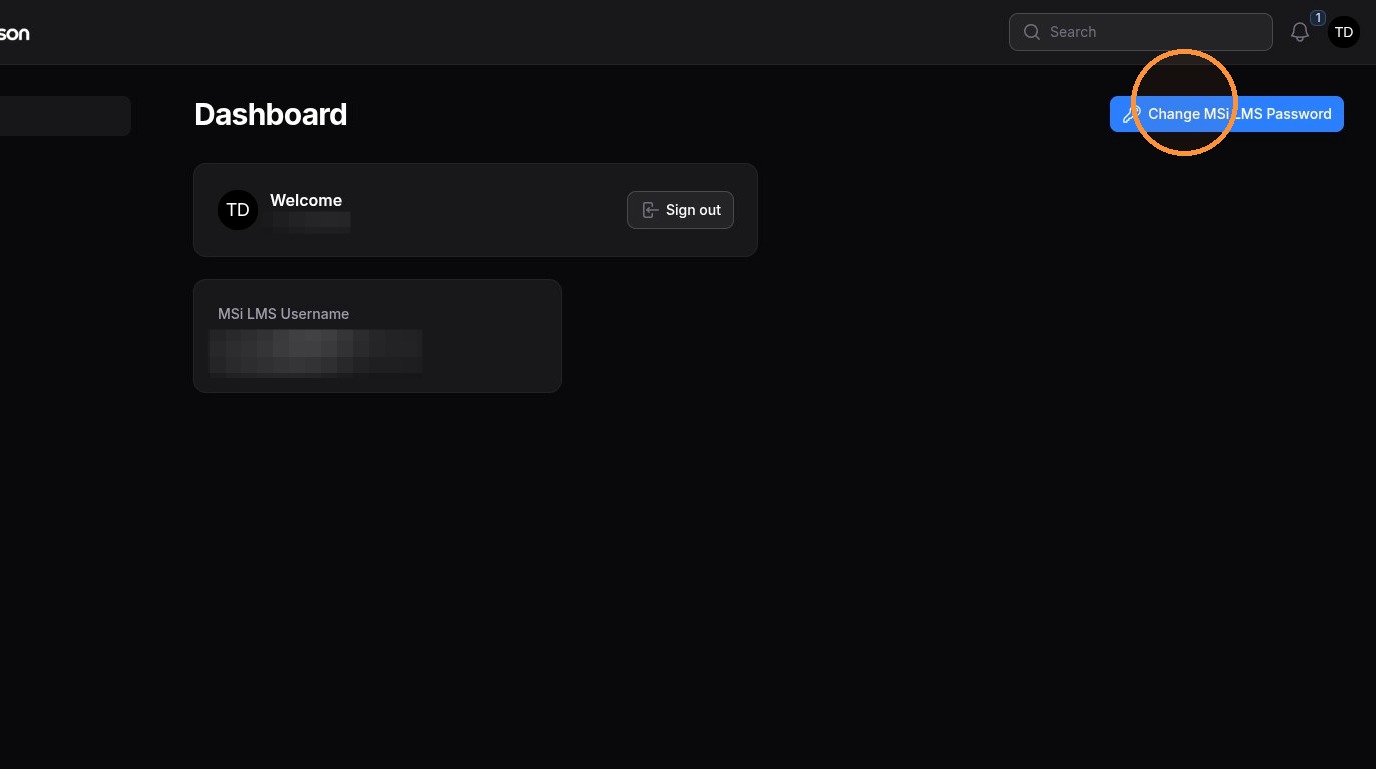
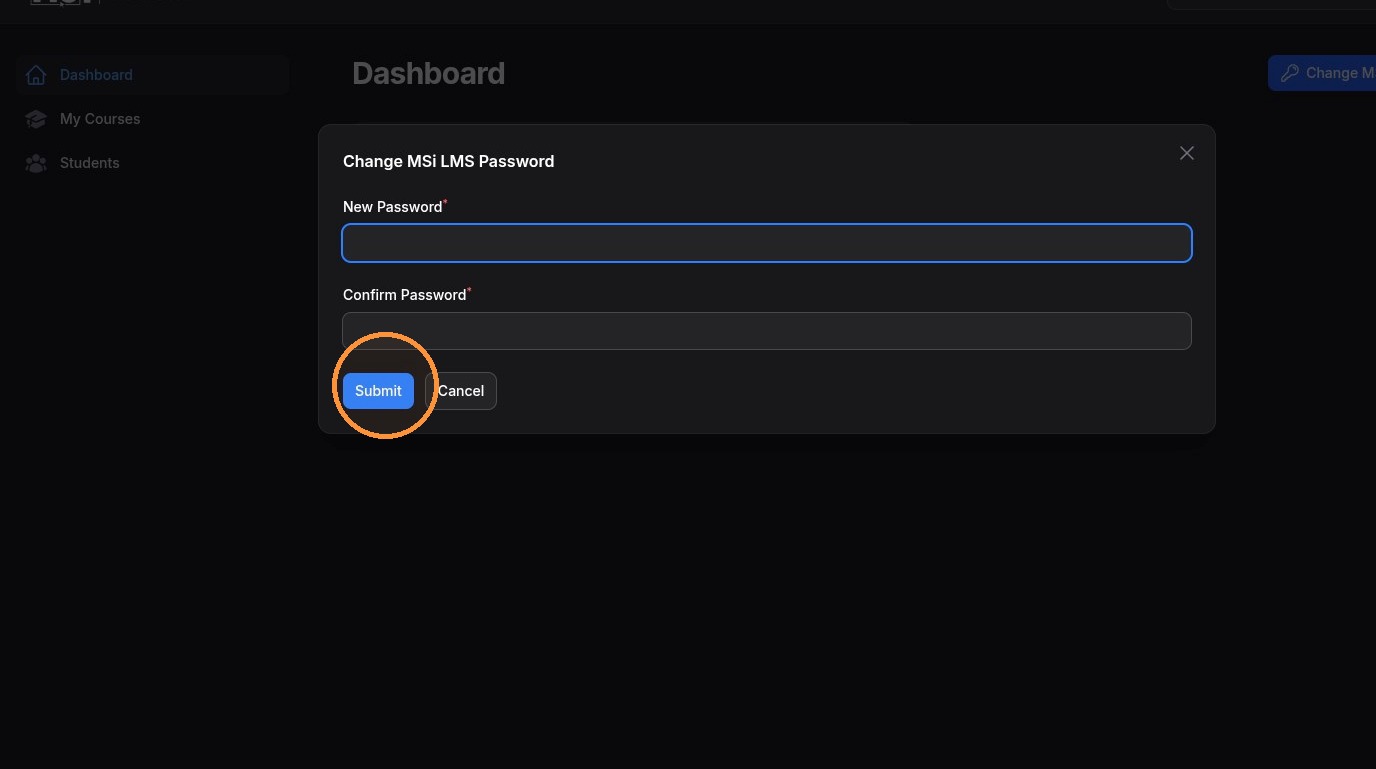
3. To set your MSi LMS password, click the Change MSi LMS Password button
4. Enter the desired password in the New Password and Confirm Password fields
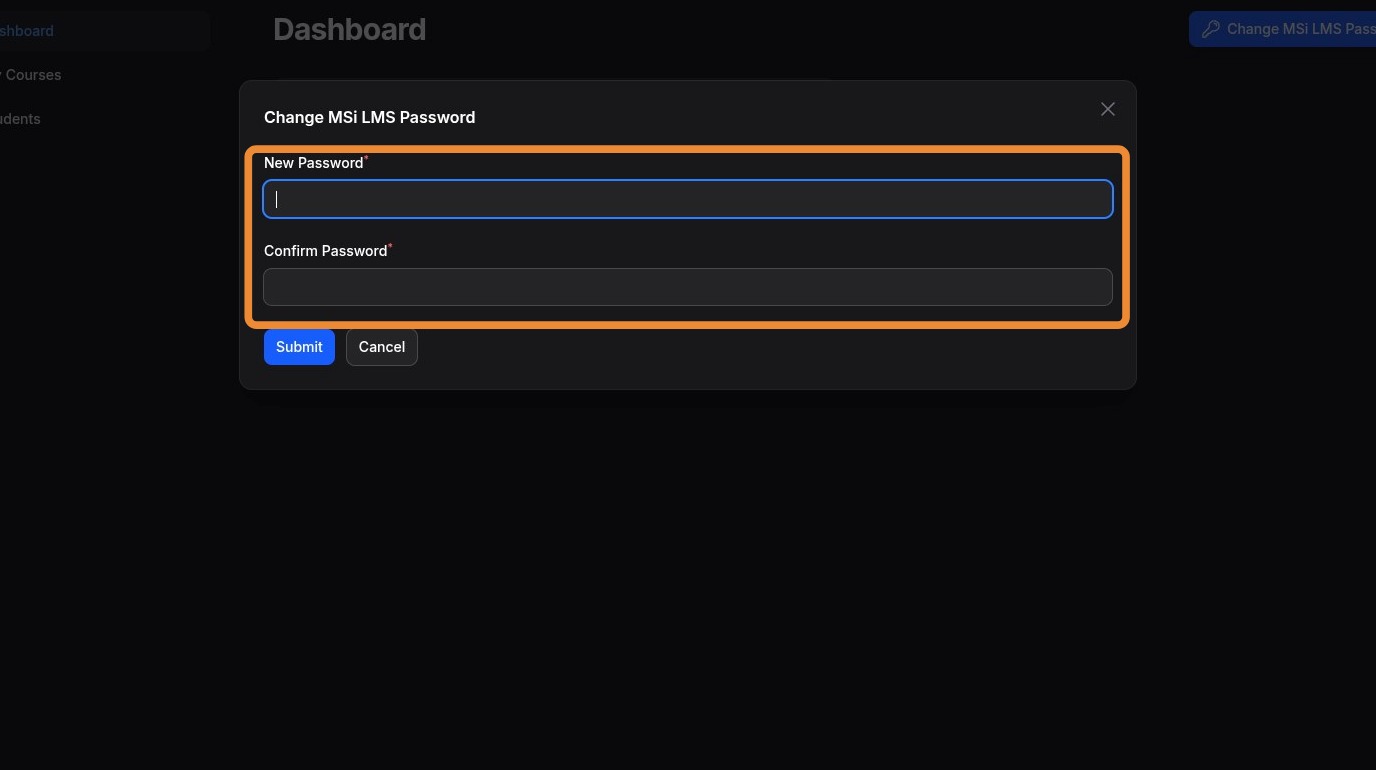
5. Click Submit to change your MSi LMS password

Course Access
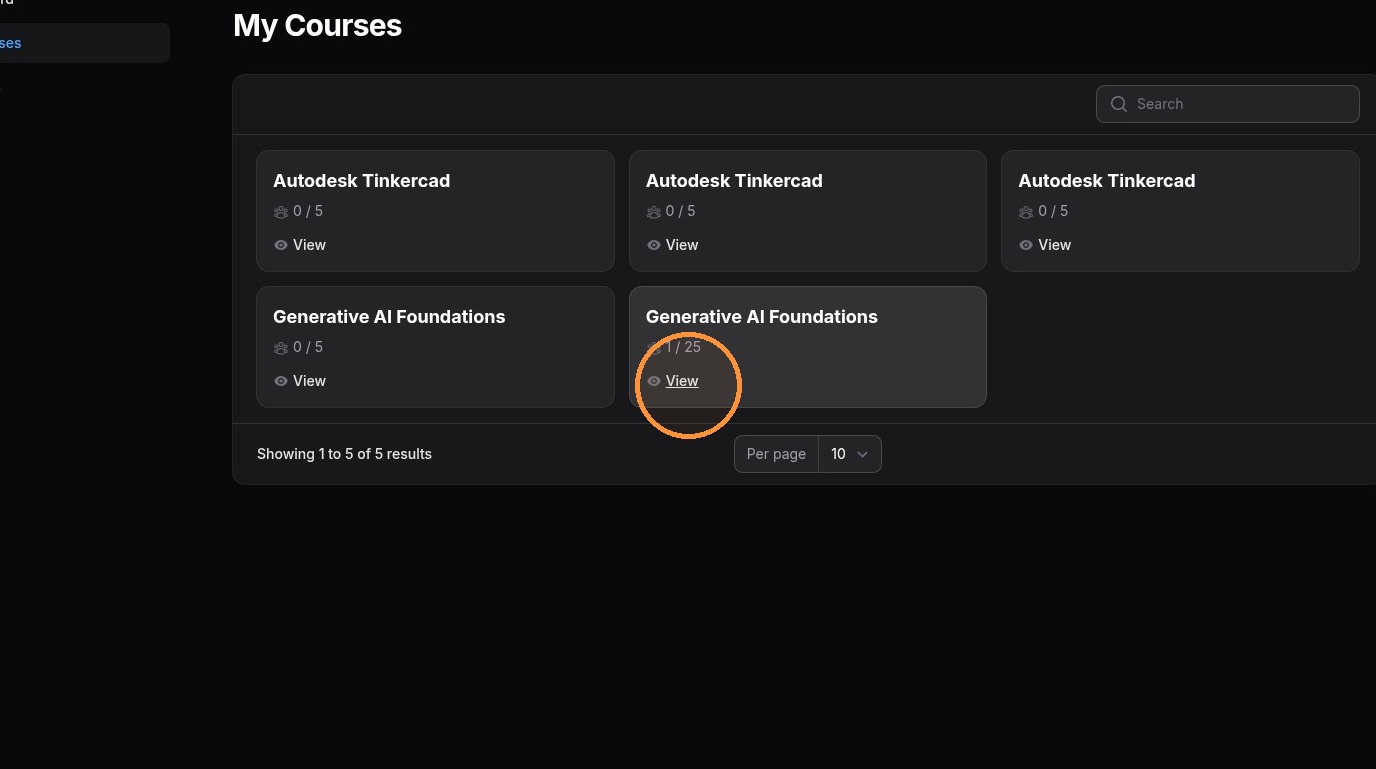
6. Navigate to My Courses tab (https://gomsi.net/instructor/cloned-courses)
7. Click the View button on the course you want to access
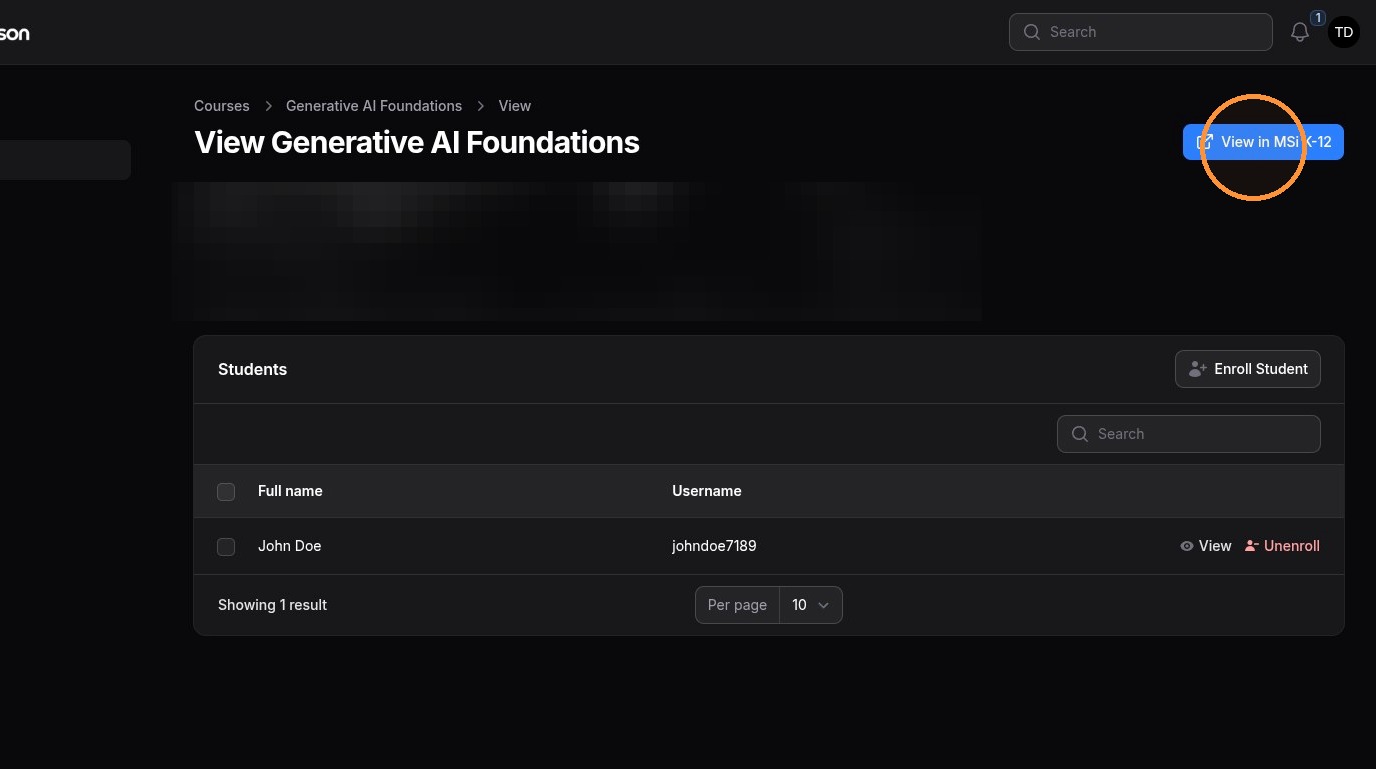
8. Click View in MSi K-12
Logging into MSi K-12
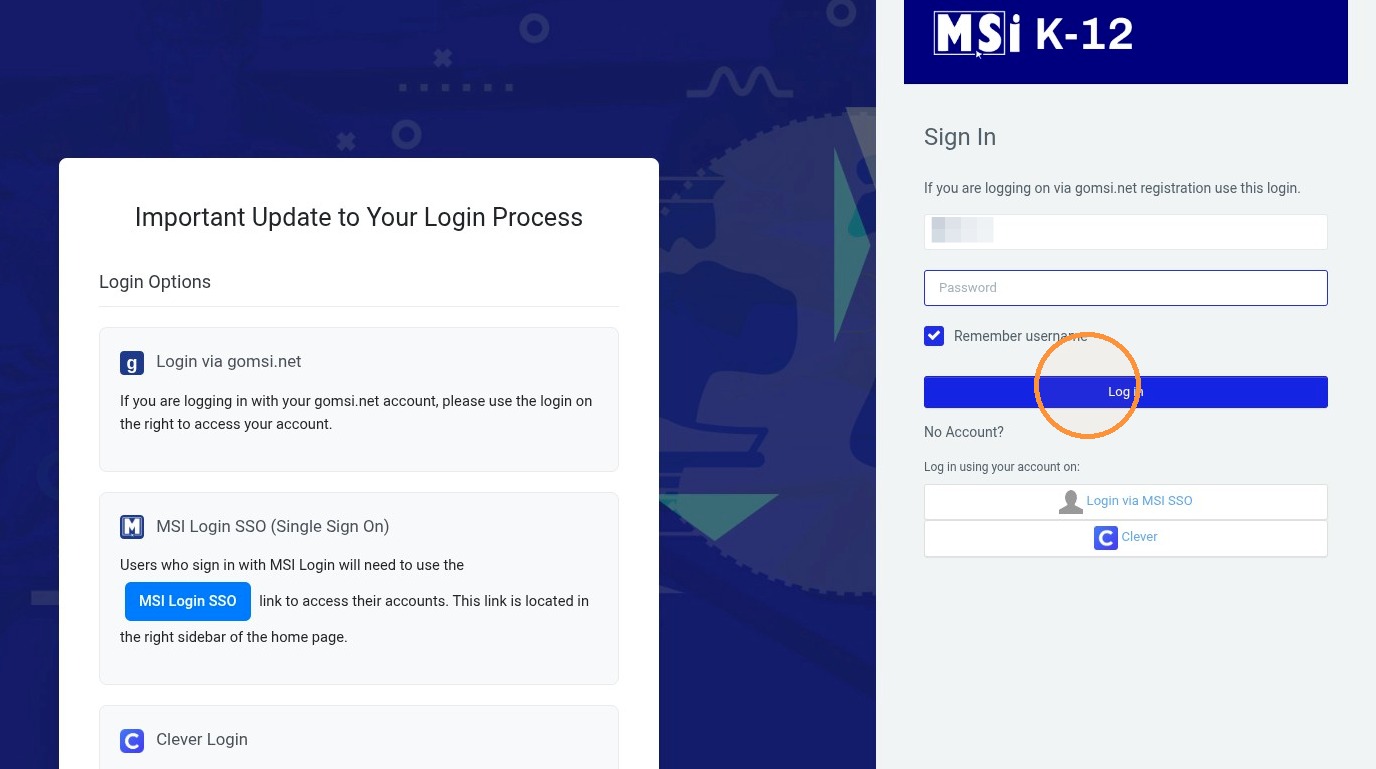
9. Enter your MSi LMS username in the Username field (username is found on your dashboard)
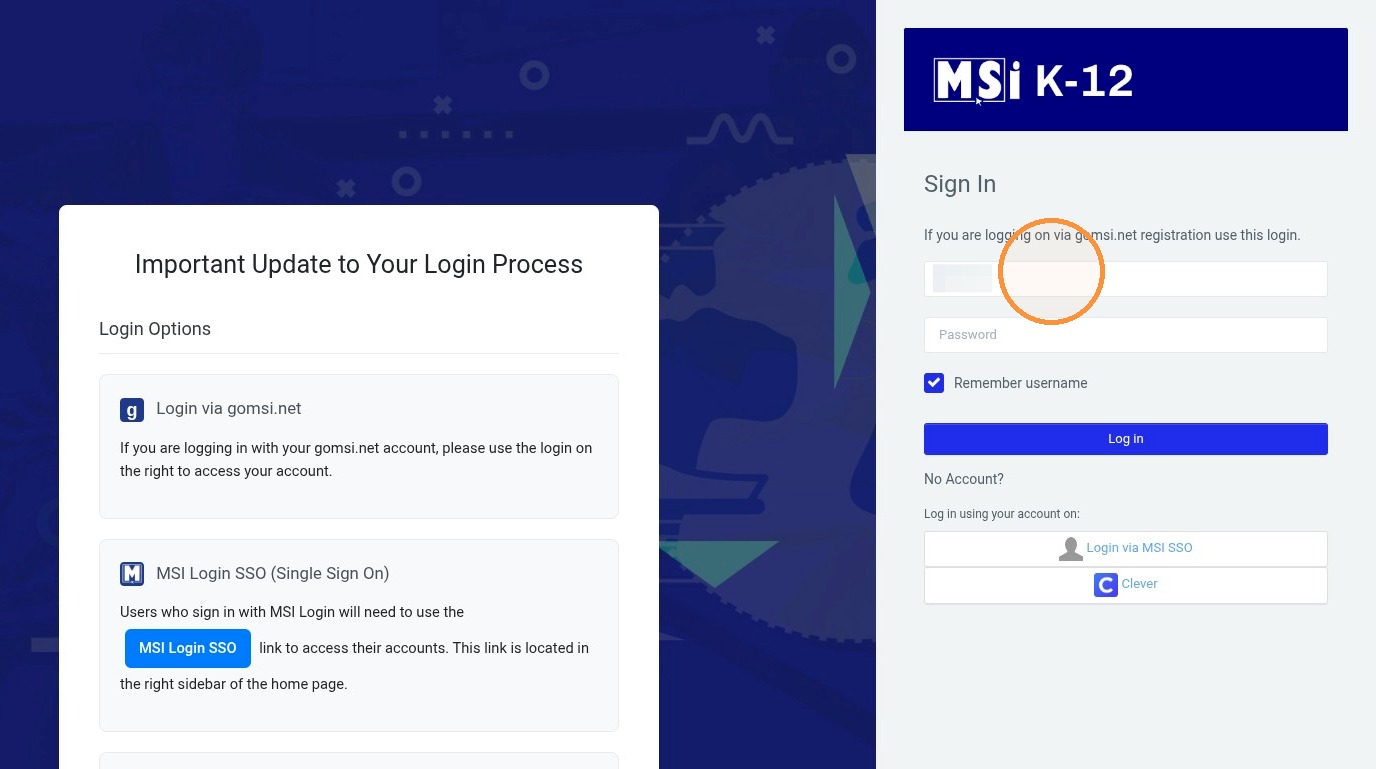
10. Enter your MSi LMS password in the Password field (same password used for instructor panel)
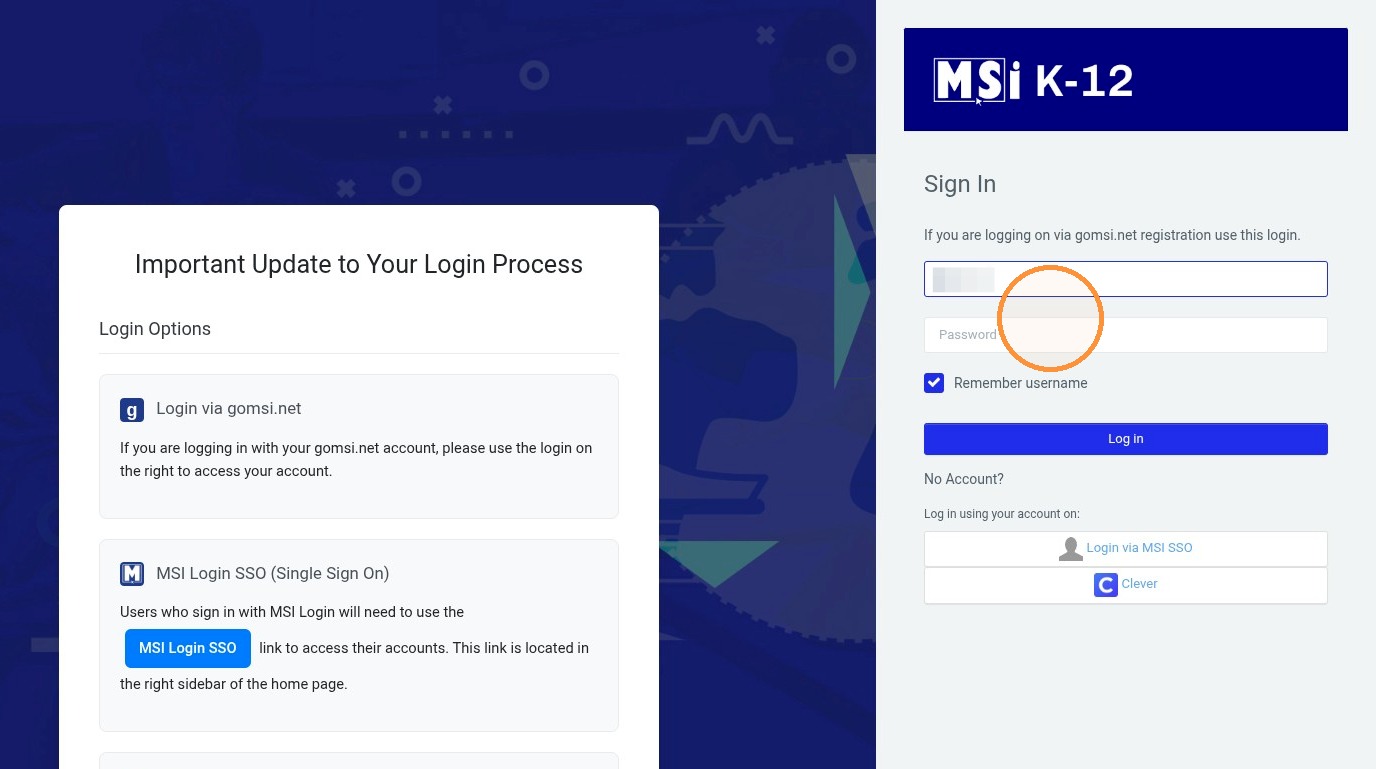
11. Click Log in