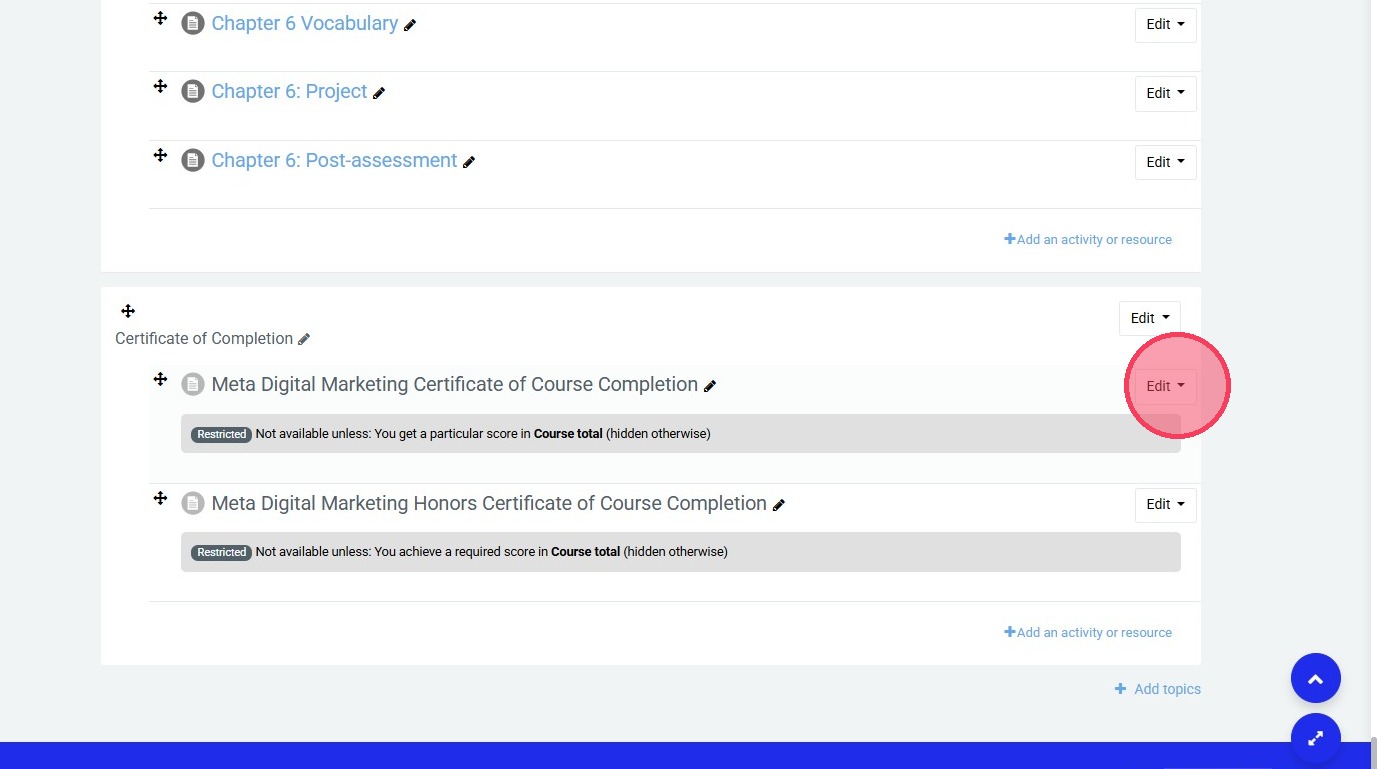
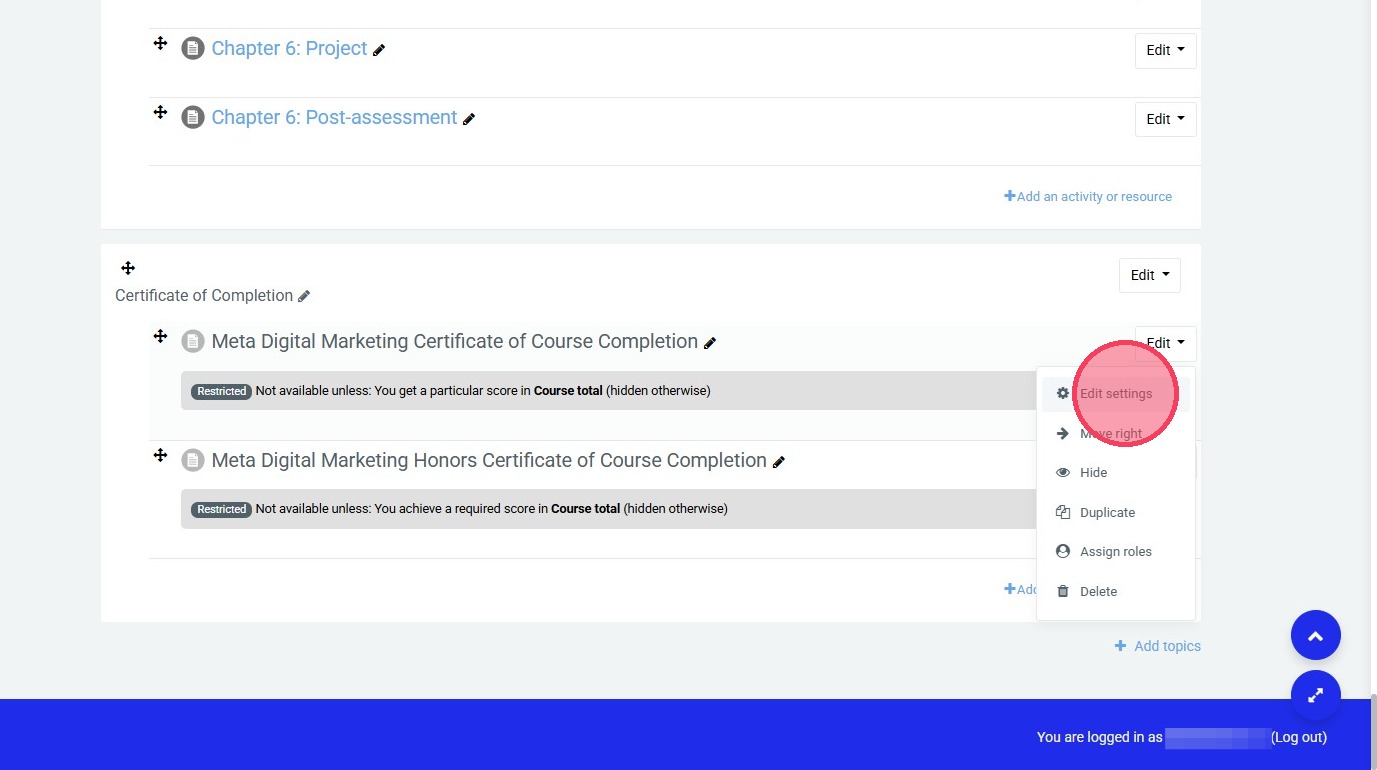
How to Configure Grade Restrictions for Certificates of Course Completion
This guide provides a simple walkthrough to help instructors control content availability based on student performance.
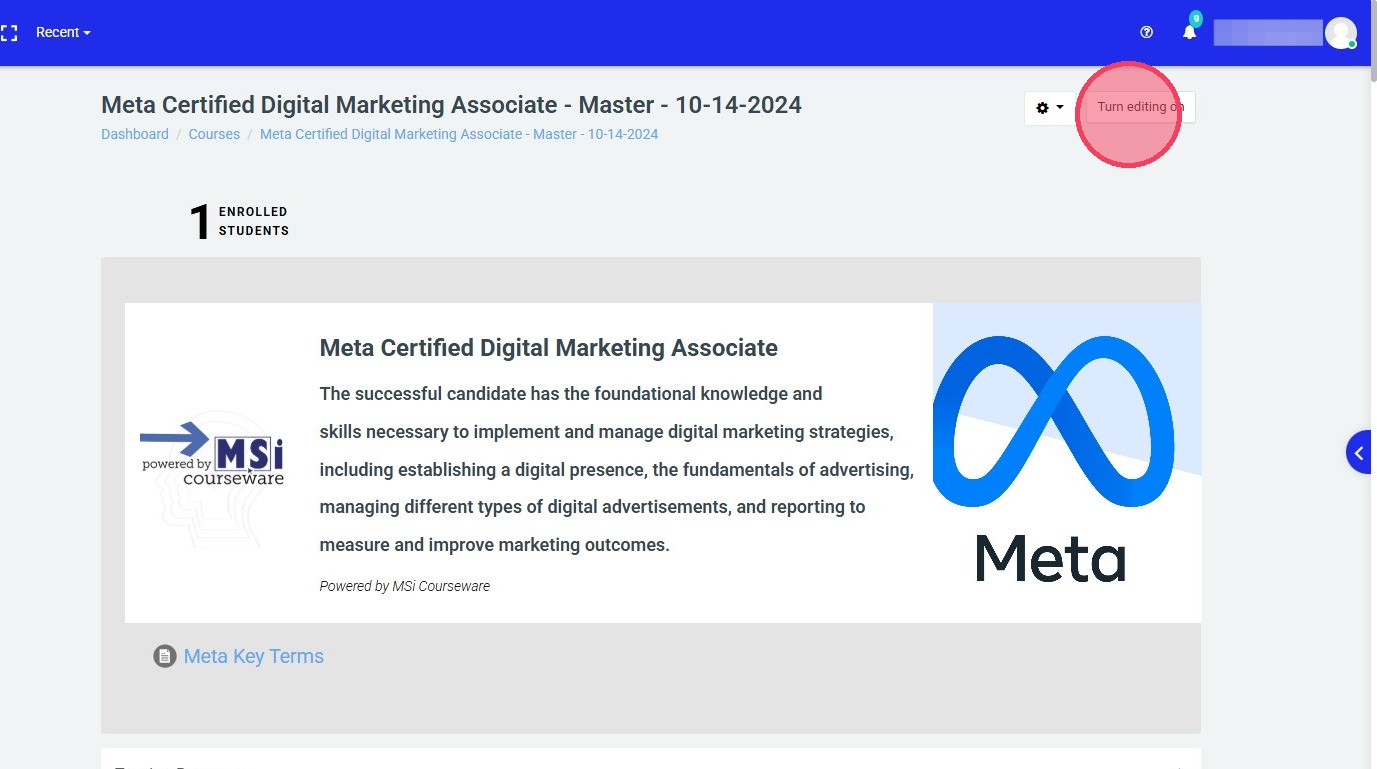
1. Navigate to your course

2. Click "Turn editing on"


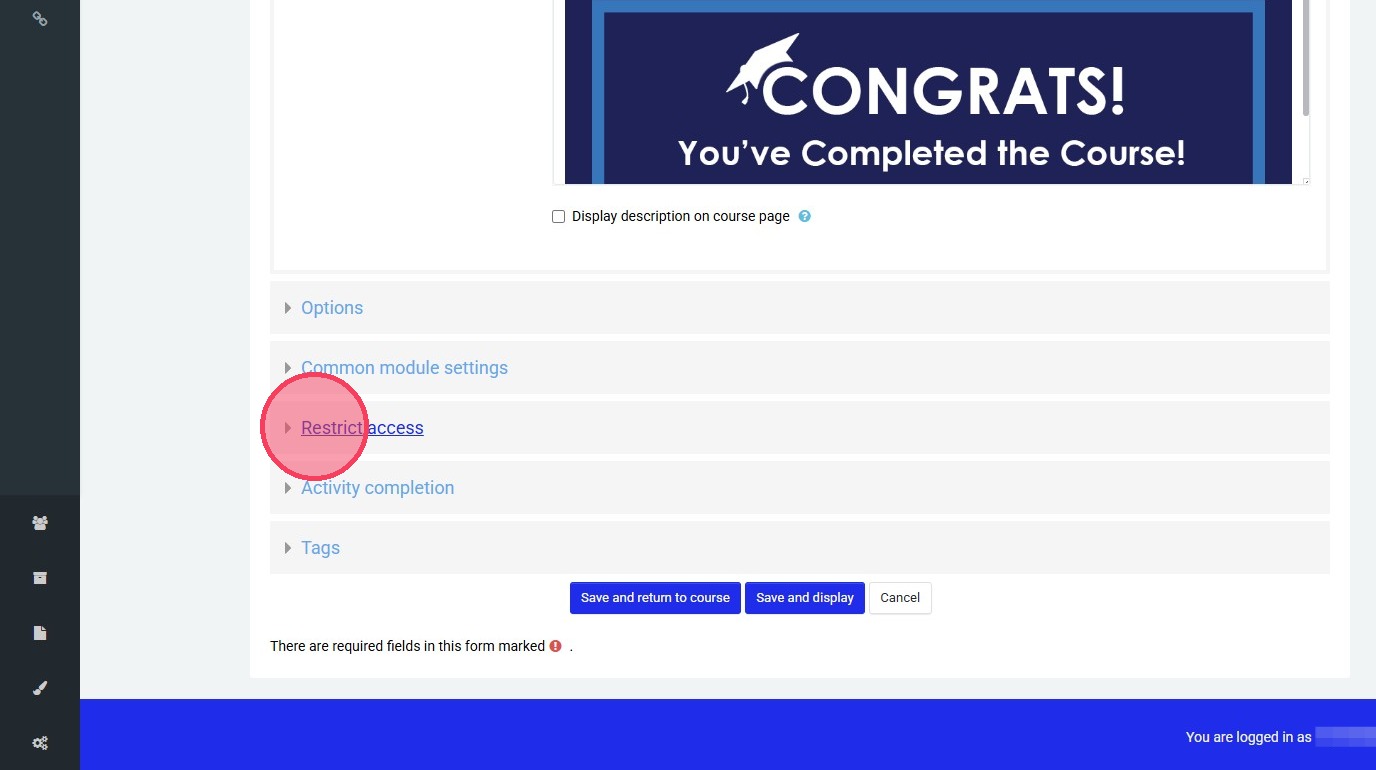
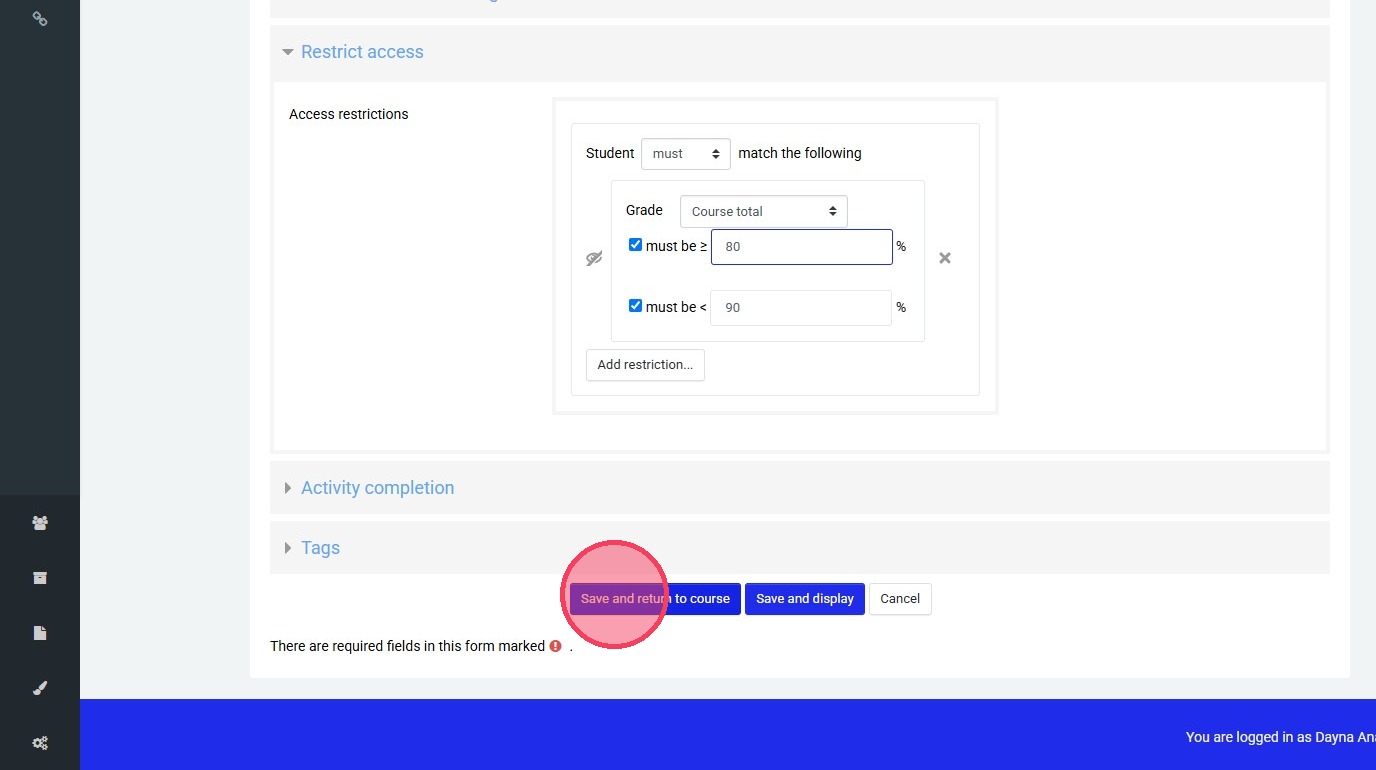
5. Expand Restrict access

6. Click Save and return to course
Related Articles
Adding Access Restrictions
Adding Access Restrictions Note: Not all activities support access resection. Access Restrictions are supported on Quizzes, Project Quizzes, SBAs, Labs, and Topics. They are not supported by stand alone knowledge checks and 'slide style' case ...
Quiz Anti-cheat Measures
Quiz Settings All settings discussed are available in the Edit Settings section for each Non-application Quiz or Scenario Based Activity (excludes in-app or simulated environment quizzes, and case studies). NOTE: Some advanced settings should only be ...
Changing Quiz Settings
Note: Remember to save your changes before exiting the settings page. To access the Settings menu: Visit your course homepage. In the top right, select "Turn editing on". Scroll to the desired quiz. Select the gear icon for that quiz. Select "Edit ...
MSi ACA Quick Start Guide to In Application Activities
MSI ACA QUICK START GUIDE TO INAPP ACTIVITIES & INFORMATION InApp and Simulation Activities: Information Simulation Practice and Quiz activities: Simulations are web-based and do not require Adobe Photoshop, Illustrator, or InDesign installed. Ideal ...
Install MOS InApp
Installing MOS InApp Extension Steps to Begin an InApp Activity Scroll down to any Practice InApp Activity in your course. Click "Click here to download" to get the MOS Start file. Download the file, then open it inside Microsoft Word. Once opened, ...