Install MOS InApp
Installing MOS InApp Extension
Steps to Begin an InApp Activity
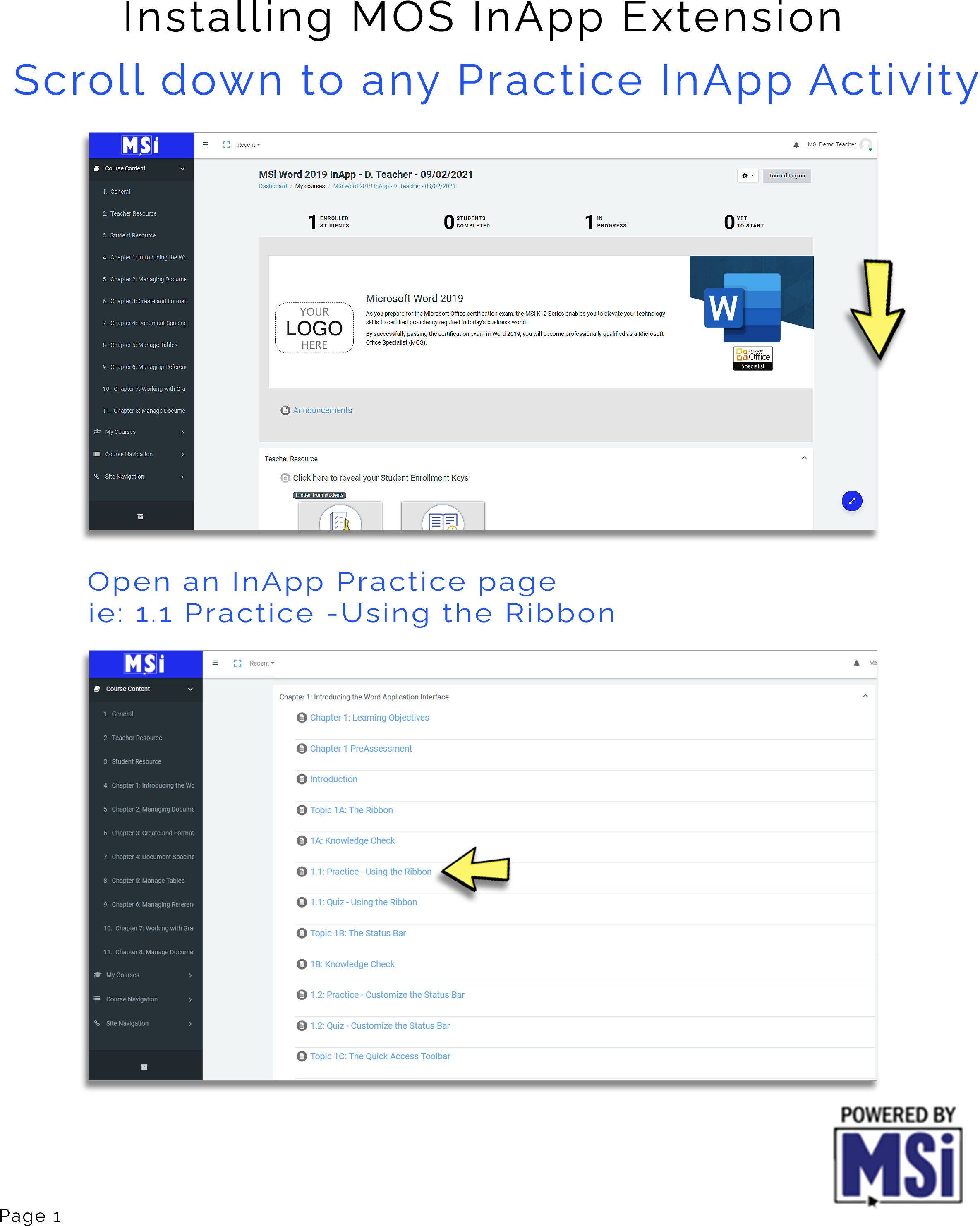
- Scroll down to any Practice InApp Activity in your course.
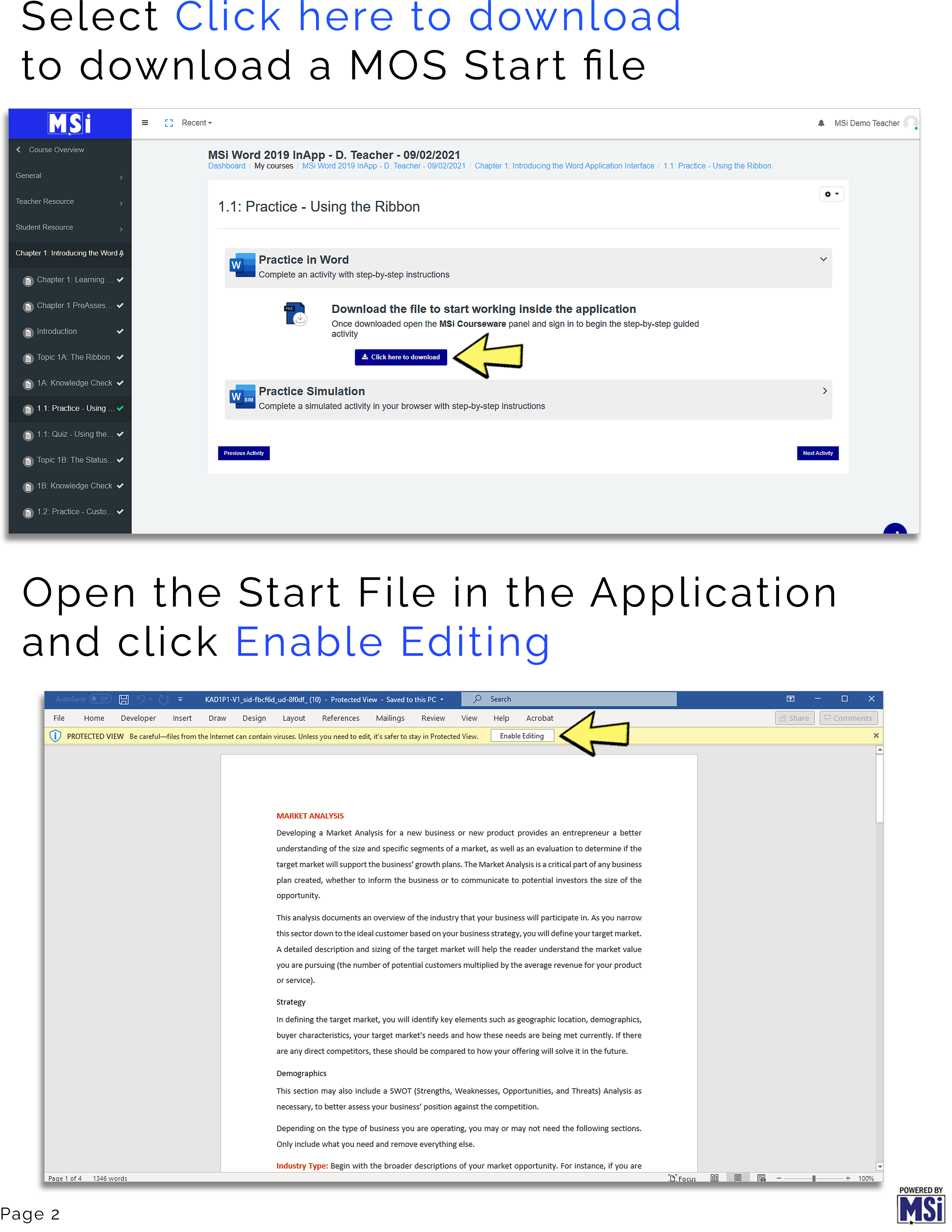
- Click "Click here to download" to get the MOS Start file.
- Download the file, then open it inside Microsoft Word.
- Once opened, click "Enable Editing" if prompted.
- Open the MSi Courseware panel and sign in to begin the step-by-step activity.
Practice Simulation
Complete simulated activities in your browser with step-by-step instructions. Downloaded activities allow you to work inside the application using guided steps.
Finding and Opening InApp Practice Pages
- Open an InApp Practice page, e.g., "1.1 Practice – Using the Ribbon".
- Complete an activity with step-by-step instructions.
- Download the file to work inside the application.
Enable Editing
When opening activity files in Word, you may see the Protected View warning. Click "Enable Editing" to allow the file to be used.
Accessing the Add-In
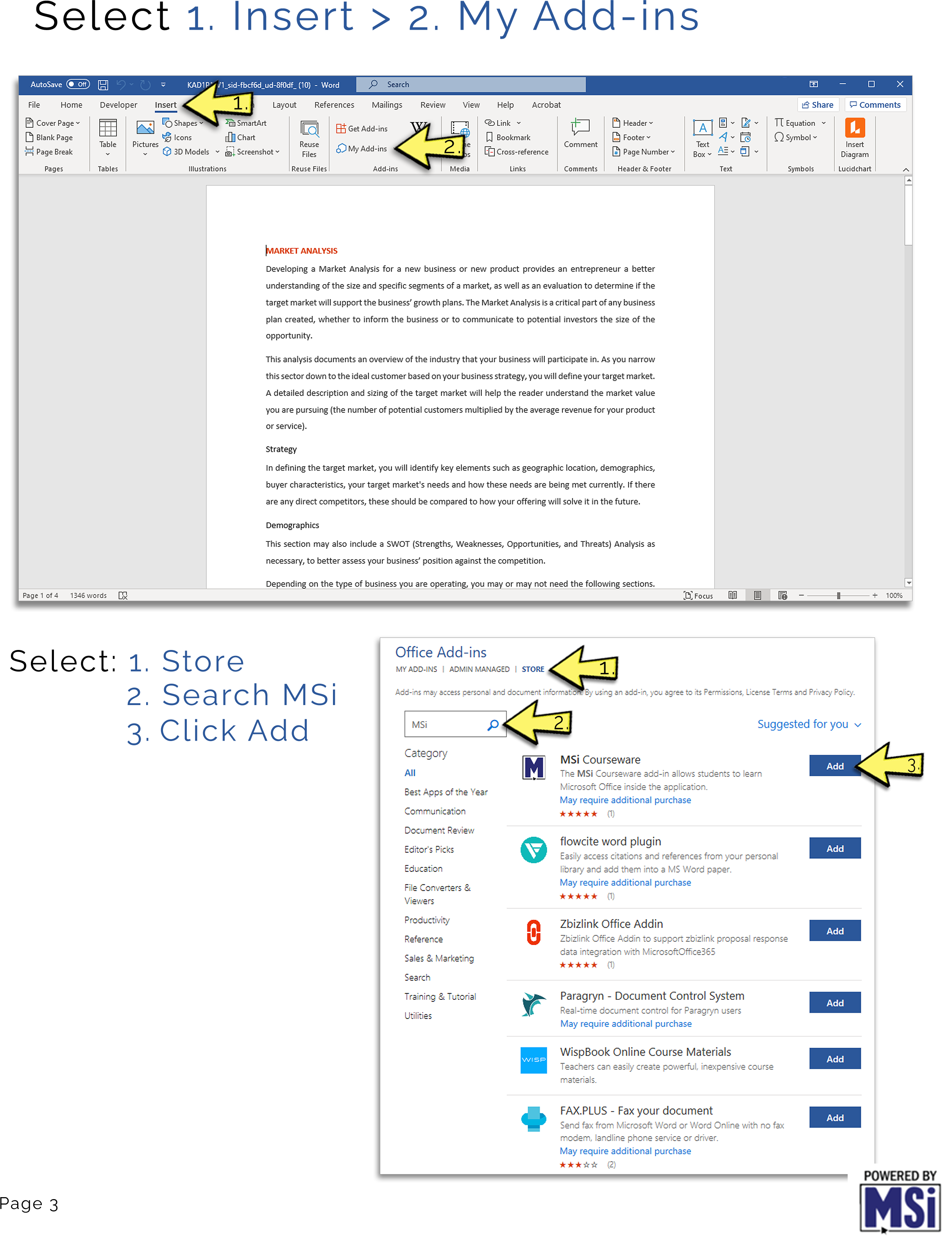
- In Word, go to "Insert," then "My Add-ins".
- Search for "MSi" in the store.
- Click "Add" to install the MSi Courseware add-in.
- The MSi Courseware add-in allows students to learn Microsoft Office inside the app with guided lessons.
Features of the MSi Courseware Add-In
- Step-by-step guided activities.
- Activities tailored to Microsoft Office Specialist certification requirements.
- Progress reporting and completion tracking.
- Easy access and installation through Office Add-ins.
Preparing for Certification
The MSi K12 Series enables you to elevate your skills to a certified proficiency required in today's business world. Successfully passing the certification exam in Word 2019 makes you a Microsoft Office Specialist (MOS).