Quiz Anti-cheat Measures
Quiz Settings
All settings discussed are available in the Edit Settings section for each Non-application Quiz or Scenario Based Activity (excludes in-app or simulated environment quizzes, and case studies).
NOTE: Some advanced settings should only be configured by administrators to maintain course integrity.
Please reach out to support@gomsi.net or create a ticket before changing any settings you do not fully understand.
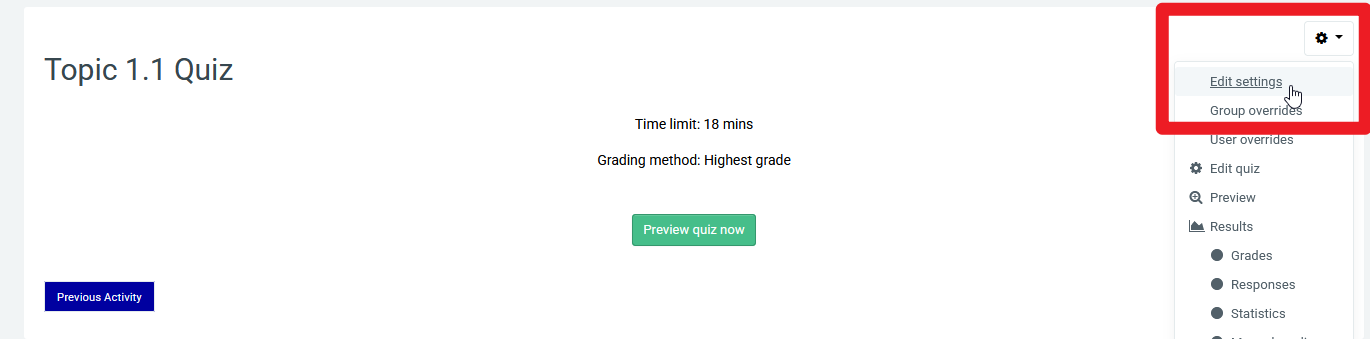
Attempt Settings:
By default, all quizzes (except Pre and Post Assessments) allow infinite attempts for student review and study. To limit retakes, modify the settings under the Grade drop-down. [Relevant help desk article]
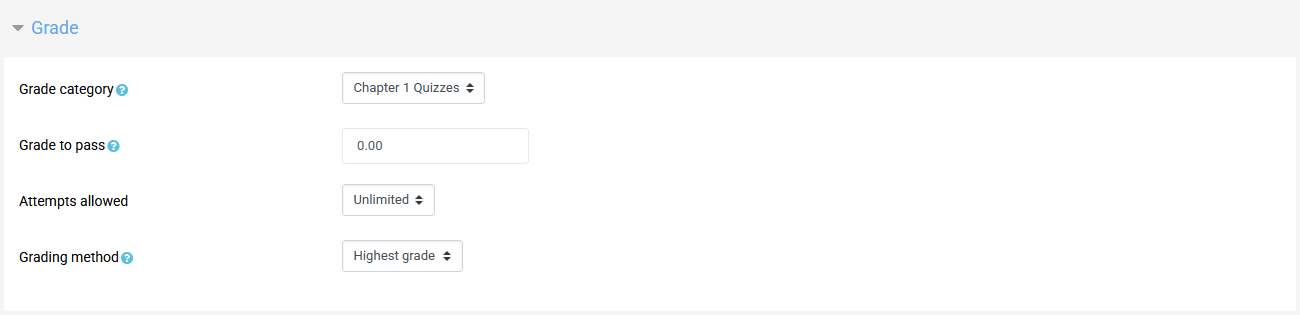
Additional Settings:
Additional restrictions on attempts are available, including forced delays and passwords for retakes. 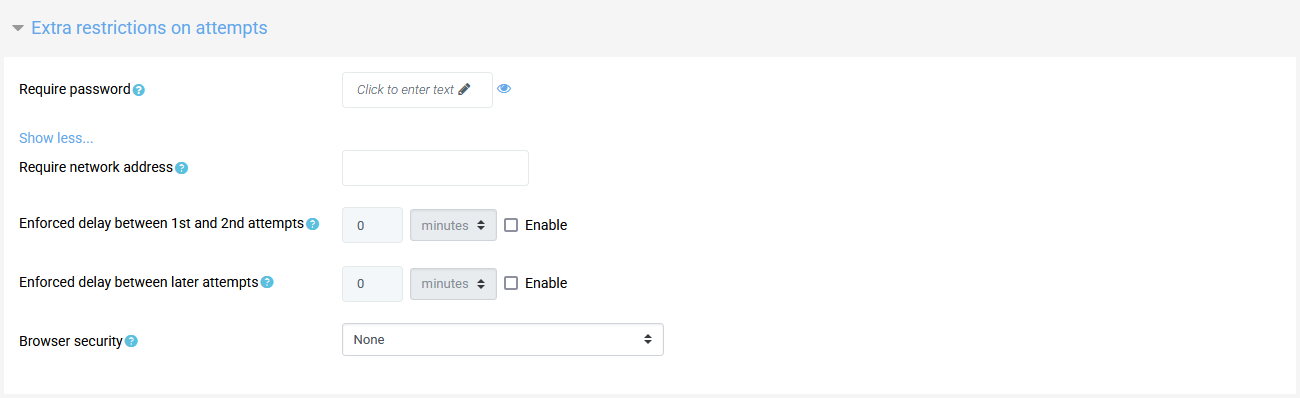
Preventing Multiple Windows During Quizzes
Safe Exam Browser Integration:
To prevent students from opening multiple windows, our system is compatible with Safe Exam Browser, an open-source application available for Windows, macOS, and iOS. Copy-able link: https://safeexambrowser.org/download_en.html
NOTE: Implementing Safe Exam Browser may require IT support from your institution. MSi cannot enforce specific browsers or browser settings due to varying privacy and data handling policies across institutions.
Supported Safe Exam Browser Options:
No: Safe Exam Browser is not required.
Yes – Configure manually: Set up Safe Exam Browser settings manually.
Yes – Upload custom config: Use a custom configuration file.
Supported Safe Exam Browser Configuration Settings :
Teachers will have to setup their own configurations. Settings are as follows:
Show Safe Exam Browser Download Button
- Displays a button on the quiz start page for downloading SEB.
- Available when "Require the use of Safe Exam Browser" is set to:
- Yes – Configure Manually
- Yes – Use an Existing Template
- Yes – Upload My Own Config
- Yes – Use SEB Client Config
Show Exit Safe Exam Browser Button
- Displays a button to quit SEB after submitting the exam.
- A quit link can be configured; if left empty, no button appears.
- Available only if "Require the use of Safe Exam Browser" is set to Yes – Configure Manually.
Ask User to Confirm Quitting
- Prompts users to confirm when quitting SEB via a quit link.
- Does not affect quitting through other methods (e.g., Quit button, Ctrl-Q).
- Available only if "Require the use of Safe Exam Browser" is set to Yes – Configure Manually.
Enable Quitting of SEB
- Allows users to quit SEB using:
- The Quit button in the taskbar
- Ctrl-Q
- Closing the main browser window
- Available when "Require the use of Safe Exam Browser" is set to:
- Yes – Configure Manually
- Yes – Use an Existing Template
Quit Password
- A password can be set for quitting SEB.
- If no password is set, users are prompted with a confirmation message.
- Available when "Require the use of Safe Exam Browser" is set to:
- Yes – Configure Manually
- Yes – Use an Existing Template
Enable Reload in Exam
- Allows page reload during a quiz using:
- Reload button in the taskbar or browser toolbar
- Keyboard shortcuts (e.g., F5 or Cmd+R)
- Available only if "Require the use of Safe Exam Browser" is set to Yes – Configure Manually.
Show SEB Task Bar
- Displays the SEB taskbar during the quiz.
- Available only if "Require the use of Safe Exam Browser" is set to Yes – Configure Manually.
Show Reload Button
- Displays a reload button in the taskbar’s bottom-right corner.
- Requires:
- "Require the use of Safe Exam Browser" set to Yes – Configure Manually
- "Show SEB Task Bar" enabled
Show Time
- Displays the current time in the taskbar.
- Requires:
- "Require the use of Safe Exam Browser" set to Yes – Configure Manually
- "Show SEB Task Bar" enabled
Show Keyboard Layout
- Allows users to select a keyboard layout from the taskbar.
- Requires:
- "Require the use of Safe Exam Browser" set to Yes – Configure Manually
- "Show SEB Task Bar" enabled
Show Wi-Fi Control
- Displays a Wi-Fi control element in the taskbar.
- Requires:
- "Require the use of Safe Exam Browser" set to Yes – Configure Manually
- "Show SEB Task Bar" enabled
Enable Audio Controls
- Adds audio volume controls in the taskbar.
- Requires:
- "Require the use of Safe Exam Browser" set to Yes – Configure Manually
- "Show SEB Task Bar" enabled
Enable Spell Checking
- Enables spell checking during quizzes.
- Available only if "Require the use of Safe Exam Browser" is set to Yes – Configure Manually.
Enable URL Filtering
- Activates URL filtering for controlling accessible websites during quizzes.
- Available only if "Require the use of Safe Exam Browser" is set to Yes – Configure Manually.
Allowed Browser Exam Keys
- Specify allowed browser exam keys for versions of SEB that can access this quiz.
- Available when:
- "Require the use of Safe Exam Browser" is set to Yes – Upload My Own Config or Yes – Use SEB Client Config
For further assistance or questions about specific settings, please contact our support team.