Student Guide: Mastering the Immersive Reader
📖
Student Guide: Mastering the Immersive Reader
Welcome! Our courses now feature an Immersive Reader to give you a more powerful and personalized learning experience than a standard textbook. Use this guide to customize your digital classroom.
🛠
How to Get Started
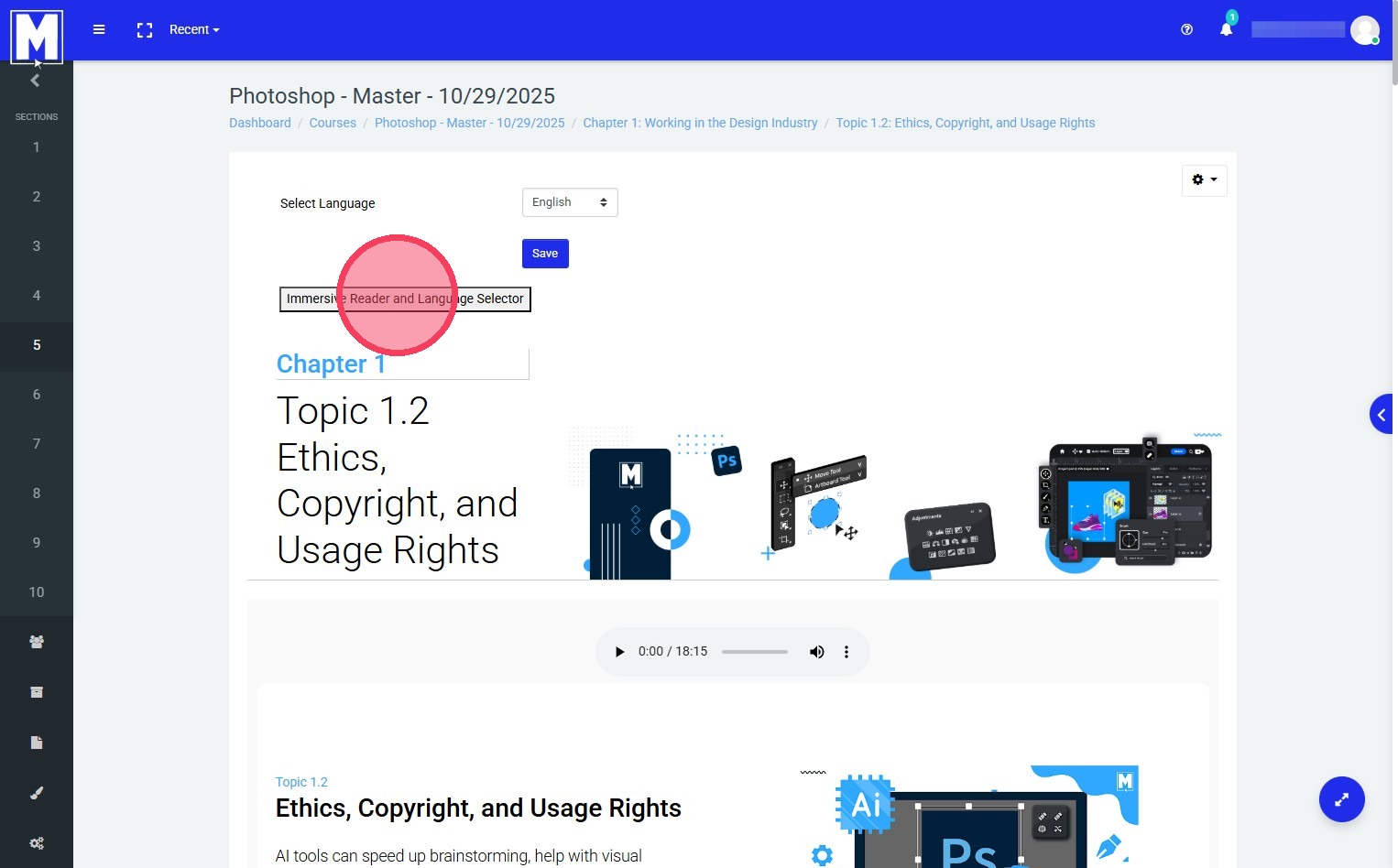
- Open the Reader:Click the Immersive Reader icon (a book with a speaker) at the top of your lesson.
- Exit Anytime:Click the back arrow at the top left to return to the main course view.
Navigate to a topic page in your course
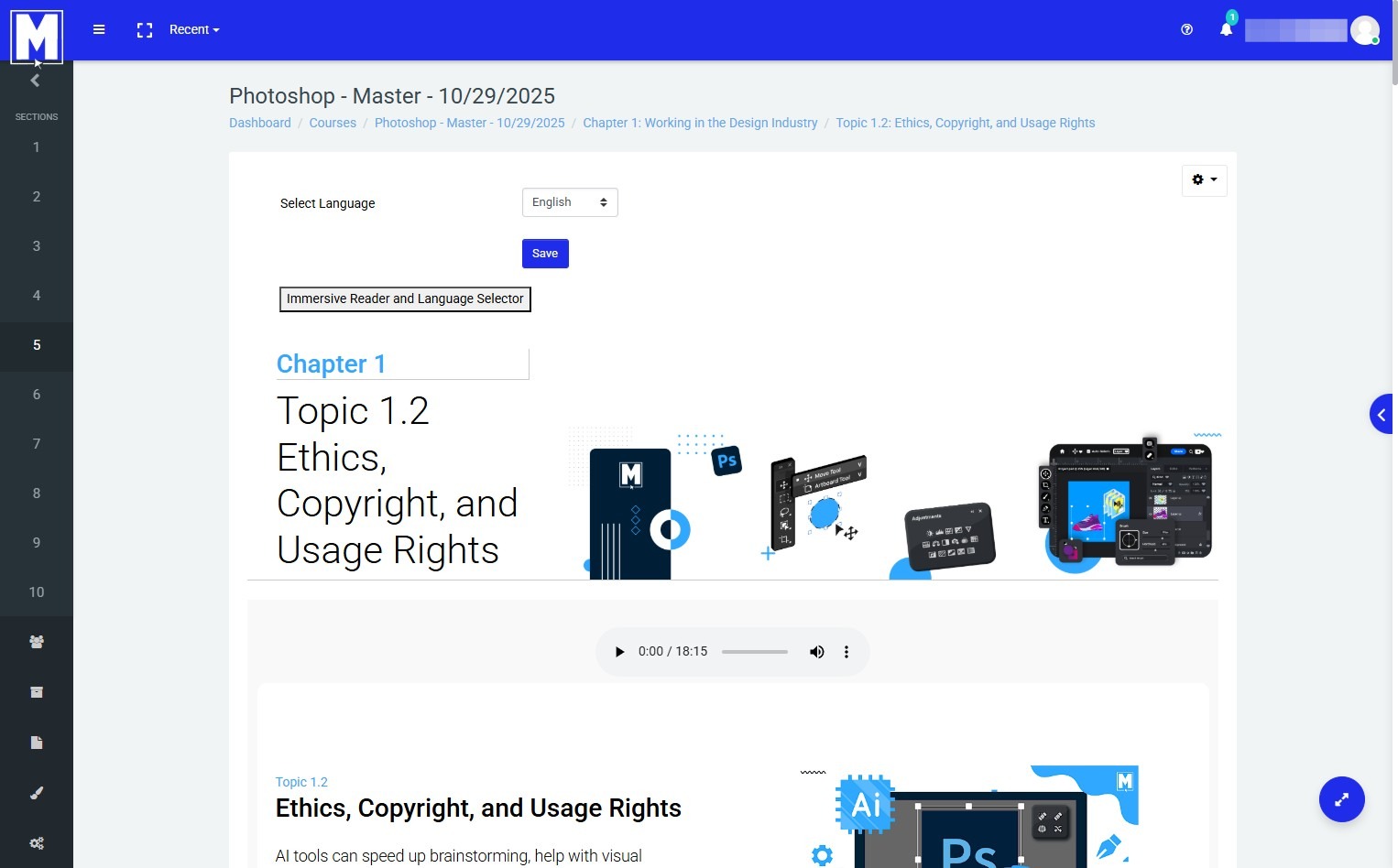
Click "Immersive Reader and Language Selector"
🎨
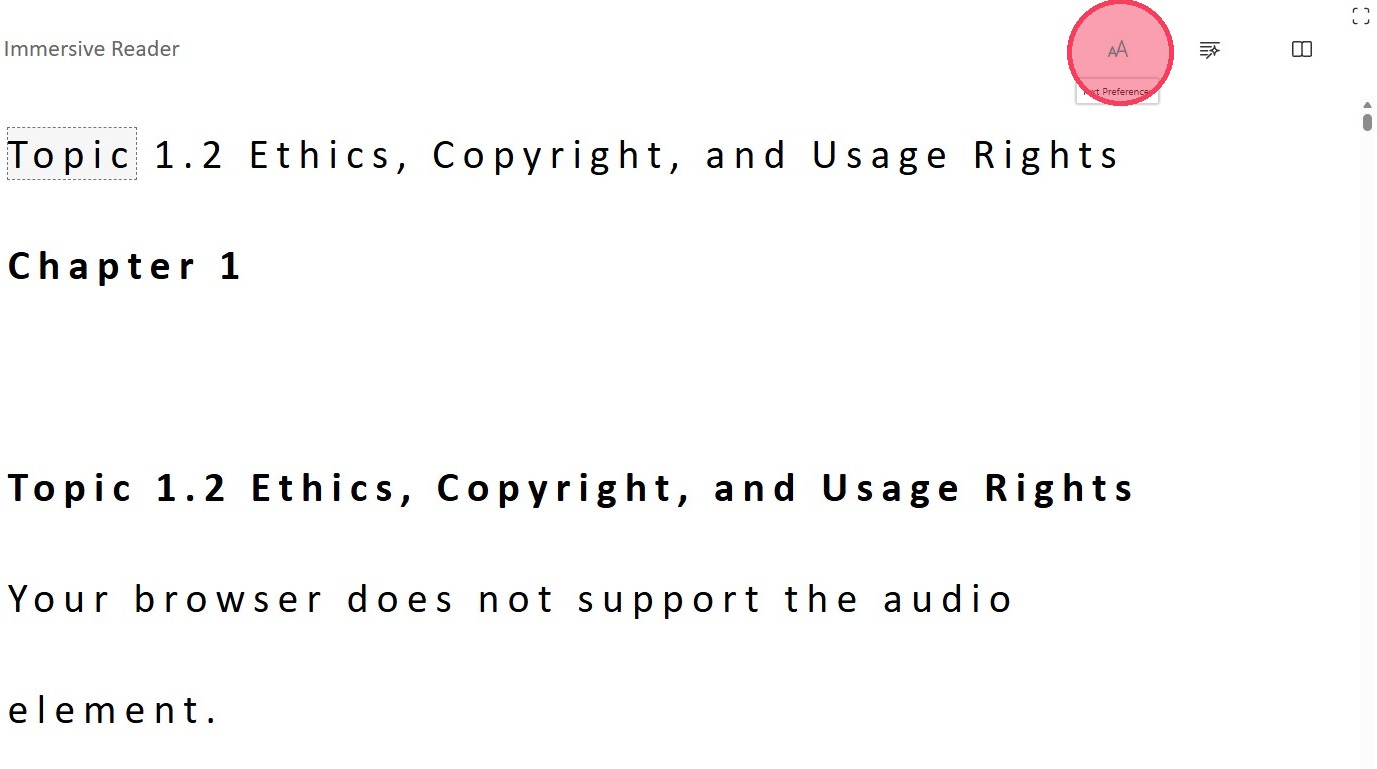
Personalize Your Reading (Text Preferences)
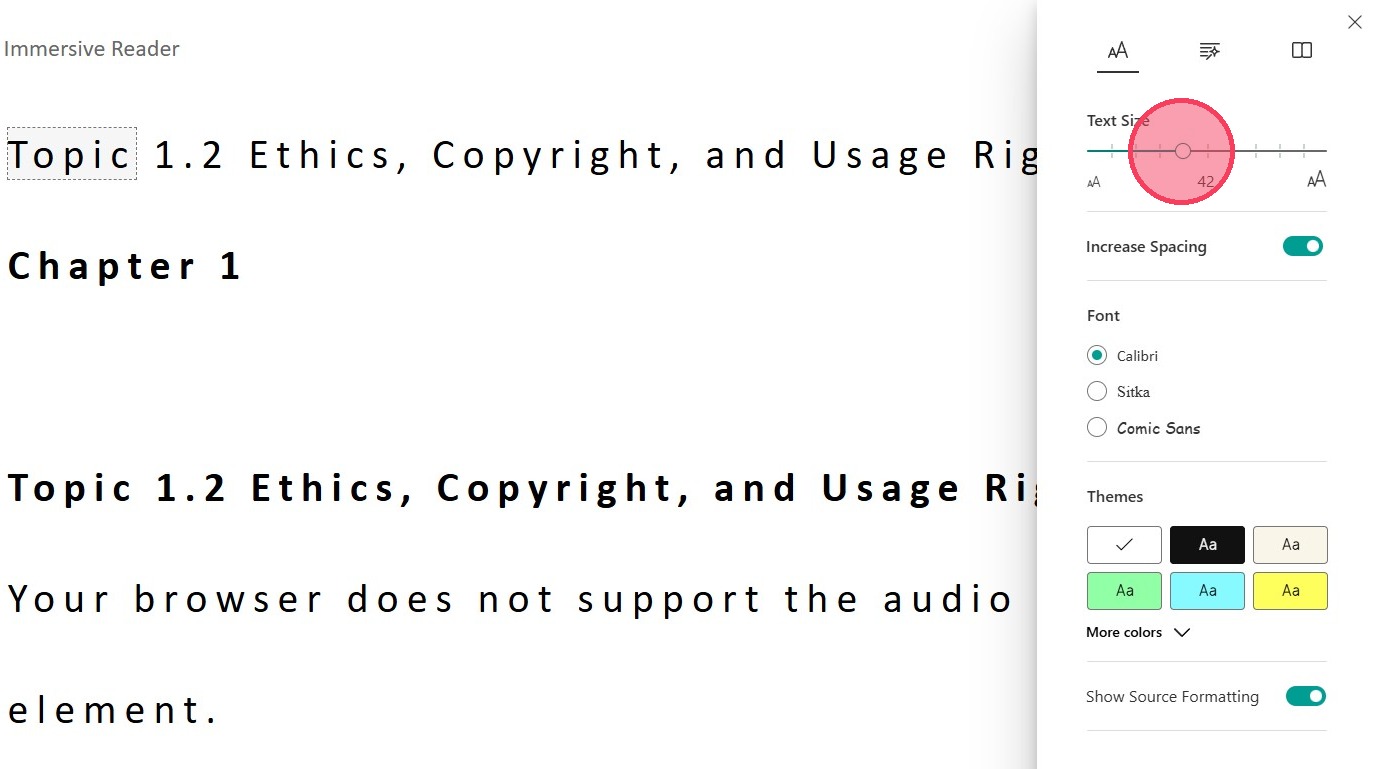
Click the AA icon to change how the page looks:
- Text Size:Slide to make words larger and easier to read.
- Increase Spacing:Toggle this on to reduce visual crowding.
- Themes:Choose a background color (like Dark, Sepia, or Blue) to help reduce eye strain or improve focus
You can change the size of the text, increase spacing, and/or change the theme of the page to your liking.
🔊
Listen and Learn (Voice Settings)
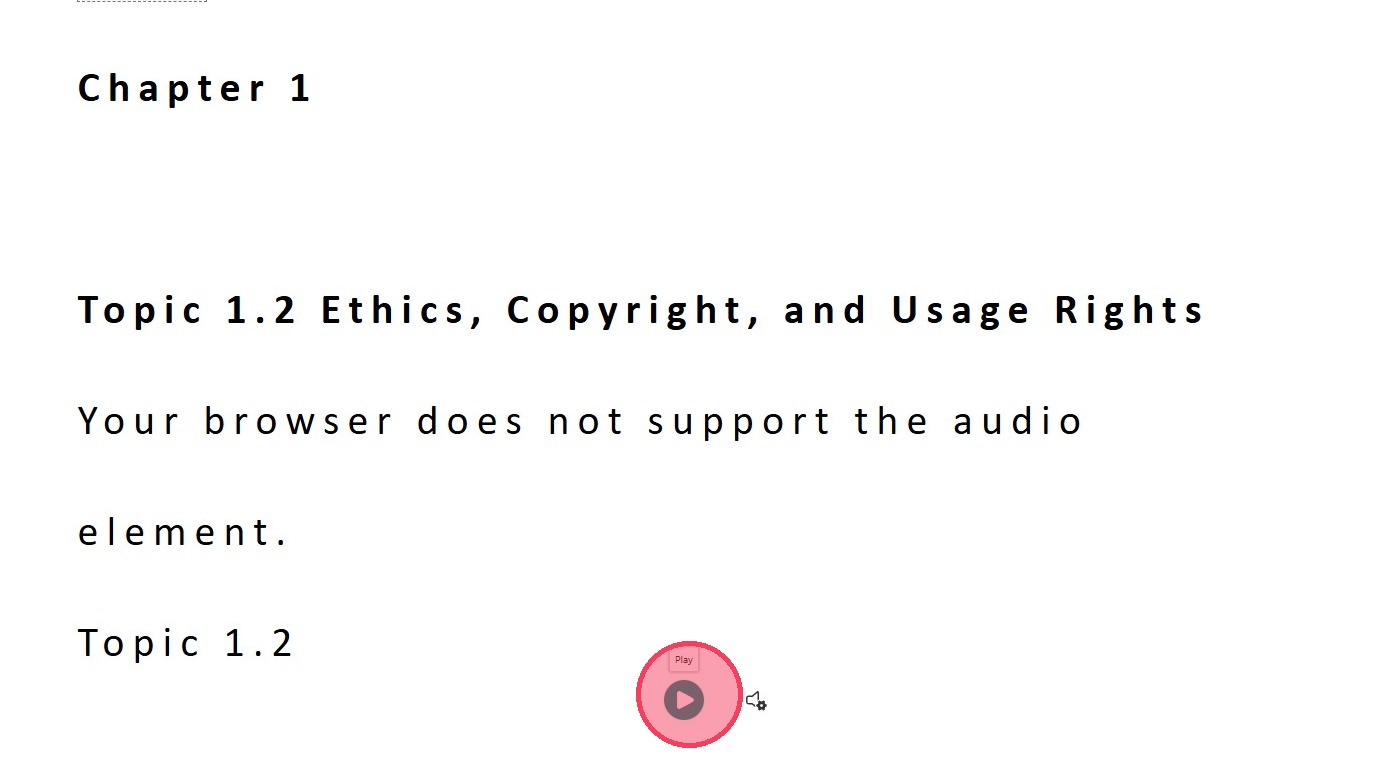
Click the Play button at the bottom center to hear the text read aloud.
- Voice Speed:Click the Gear icon to slow down or speed up the narration.
- Follow Along:The reader automatically highlights words as it speaks to help with retention.
By clicking the play button, you will trigger the Read-Aloud feature. The system will read the text out loud for you while highlighting each word throughout the page.
🌍
Translation & Focus (Reading Preferences)
Click the Book icon to access powerful comprehension tools:
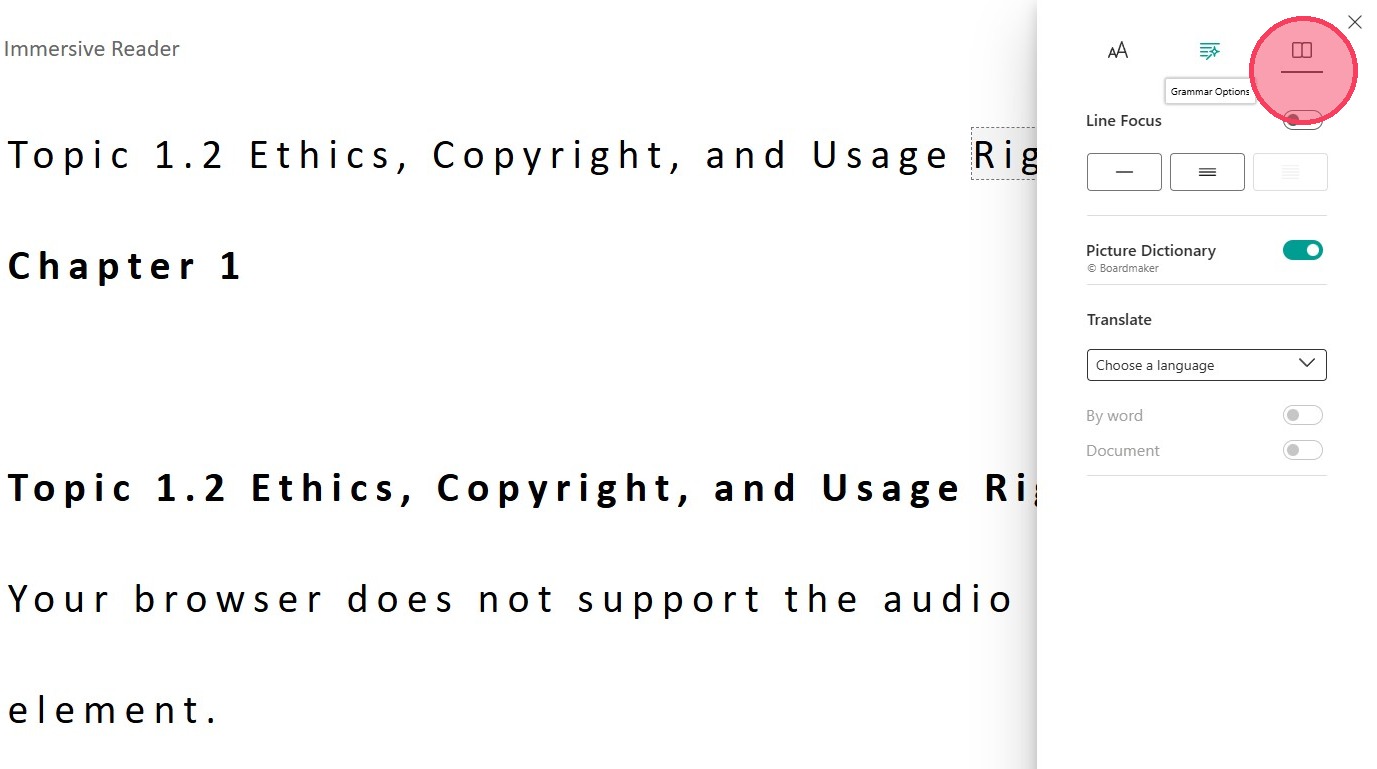
- Line Focus:View only 1, 3, or 5 lines at a time to stay on track.
- Picture Dictionary:Click a word to see an image of what it means.
- Translate:Select a language to translate the entire page or just individual words instantly.
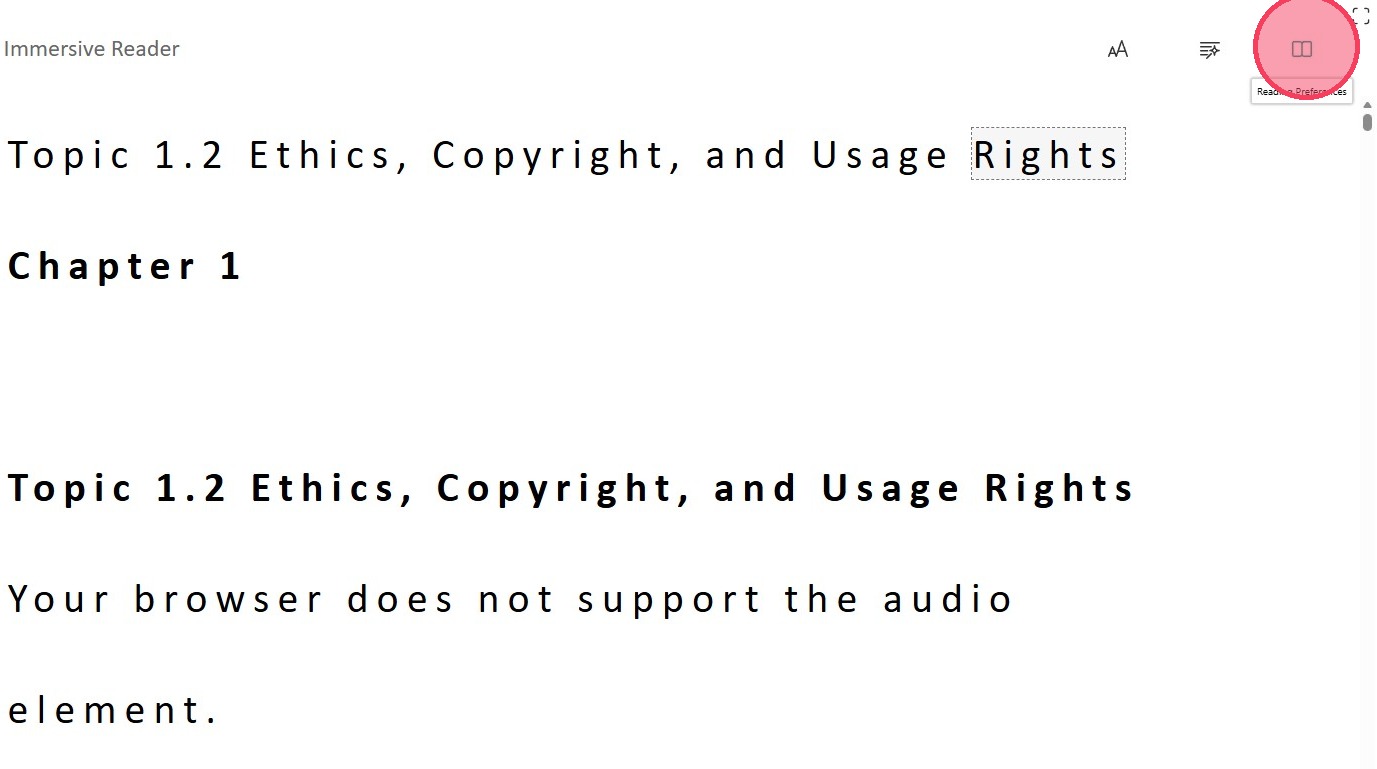
Some preferences include customizing Line Focus and selecting any preferred language from the Translator. Within the Reading Preferences is also where you can find the option for the Picture Dictionary.
✍️
Grammar Support (Grammar Options)
Click the Wand icon to break down complex sentences:
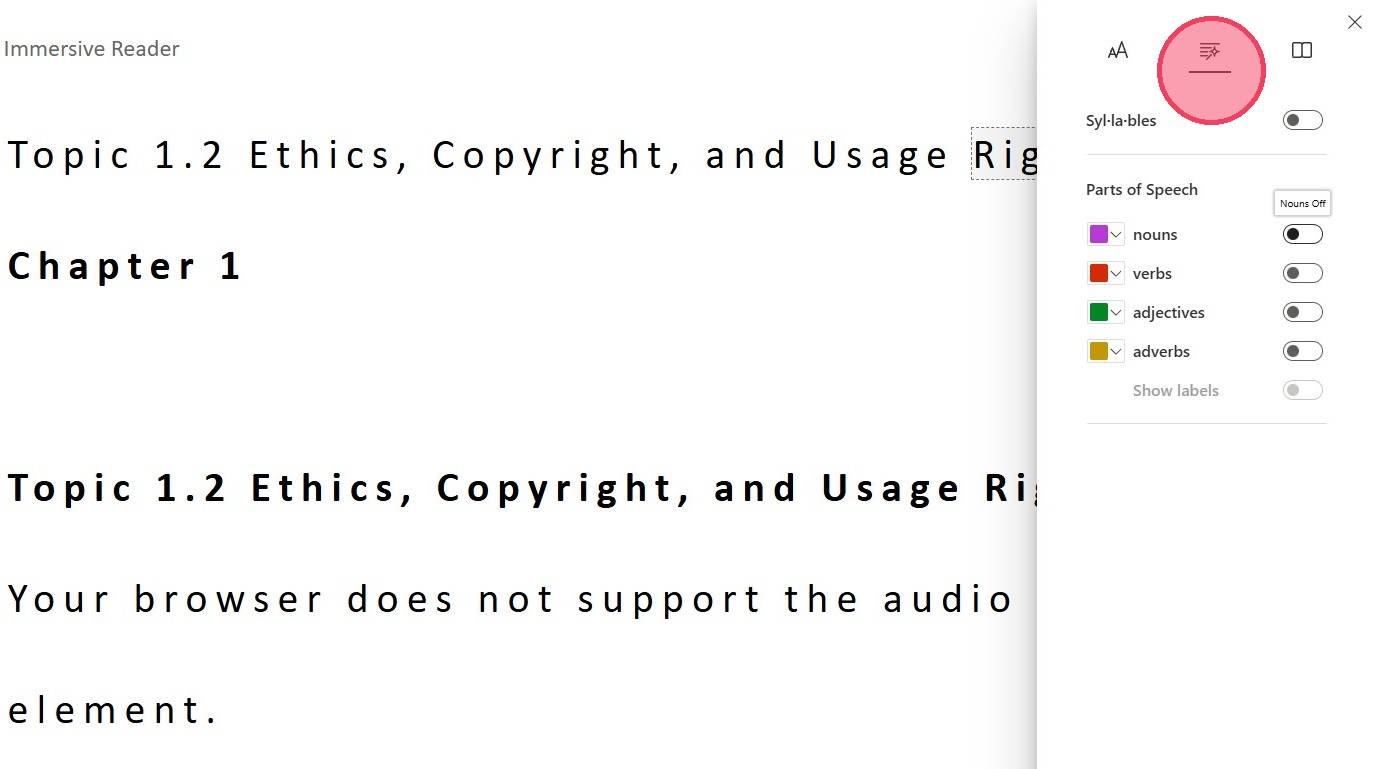
- Syllables:Split words into parts (e.g., cur·ric·u·lum).
- Parts of Speech:Turn on labels to highlight Nouns, Verbs, and Adjectives in different colors.
Our Grammar Tools feature which allows you to highlight any parts of speech so they can easily stand out throughout the text.
Tip for Success:
Use the Picture Dictionary and Read Aloud features
together when you encounter new technical terms or certifications—it's a great
way to master new vocabulary!
Related Articles
Quick Start Guide: Using the Immersive Reader
Quick Start Guide: Using the Immersive Reader The Immersive Reader is designed to help you read and understand your course content in the way that works best for you. Follow these steps to customize your experience: 1. Launch the Tool Look for the ...MSi ACA Quick Start Guide to In Application Activities
MSI ACA QUICK START GUIDE TO INAPP ACTIVITIES & INFORMATION InApp and Simulation Activities: Information Simulation Practice and Quiz activities: Simulations are web-based and do not require Adobe Photoshop, Illustrator, or InDesign installed. Ideal ...MSi MOS Quick Start Guide to In Application Activities
MSI MOS QUICK START GUIDE TO INAPP ACTIVITIES & INFORMATION InApp and Simulation Activities: Information Simulation Practice and Quiz activities: Simulations are web-based and do not require Microsoft Word, PowerPoint or Excel installed. Ideal for ...How to Configure Grade Restrictions for Certificates of Course Completion
How to Configure Grade Restrictions for Certificates of Course Completion This guide provides a simple walkthrough to help instructors control content availability based on student performance. 1. Navigate to your course 2. Click "Turn editing on" 3. ...Removing Students
For any students that you wish to remove from your roster completely, please provide us with the student's first and last name(s). Only an MSi Team Member can remove students. Remember that once we remove a student from the system that we cannot ...