Edit Group Enrollment

Edit Group Enrollment

How to Edit Group Enrollment for a Course Participant

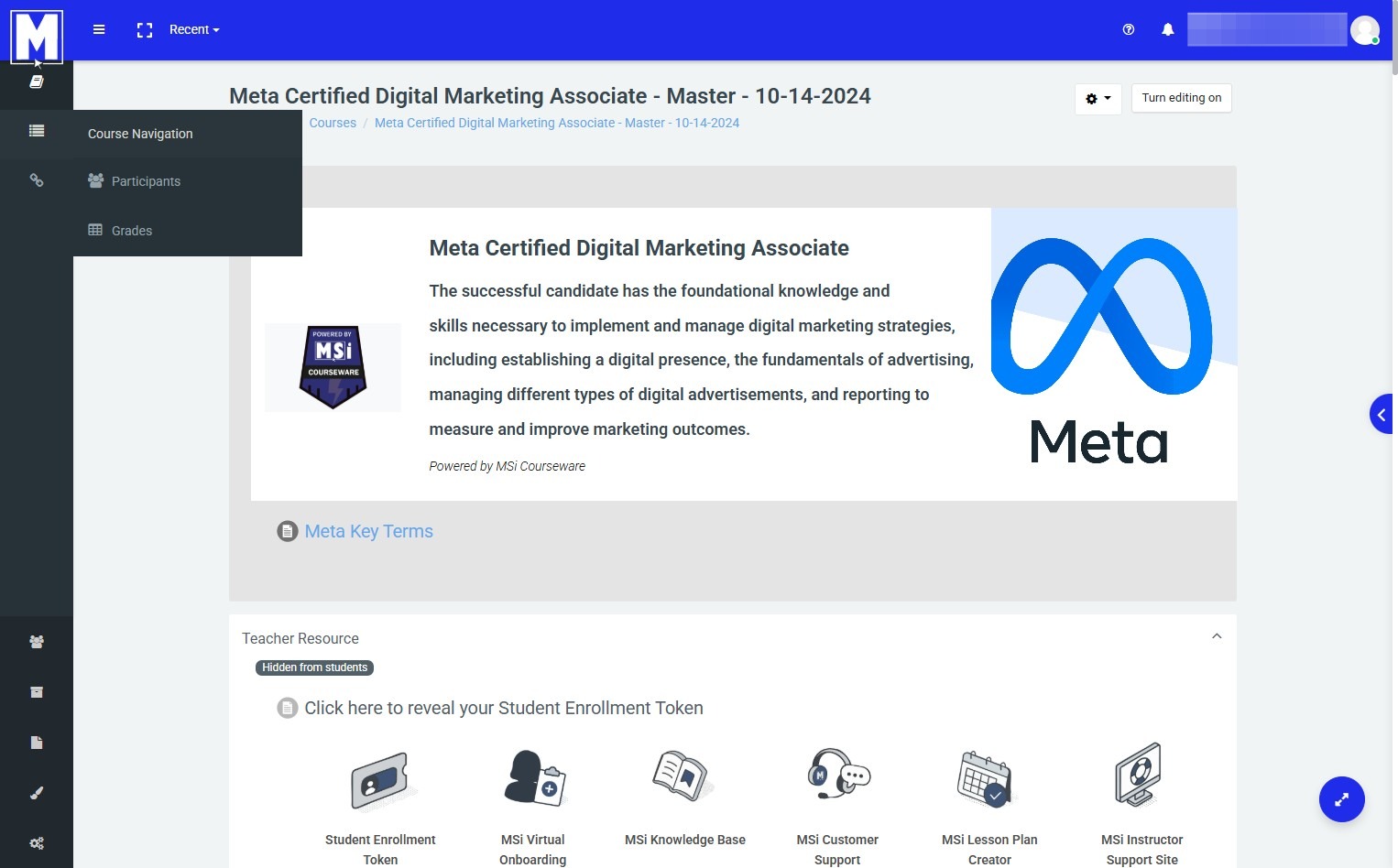
1. To change or updated which group your students are in, begin by navigating to your course.
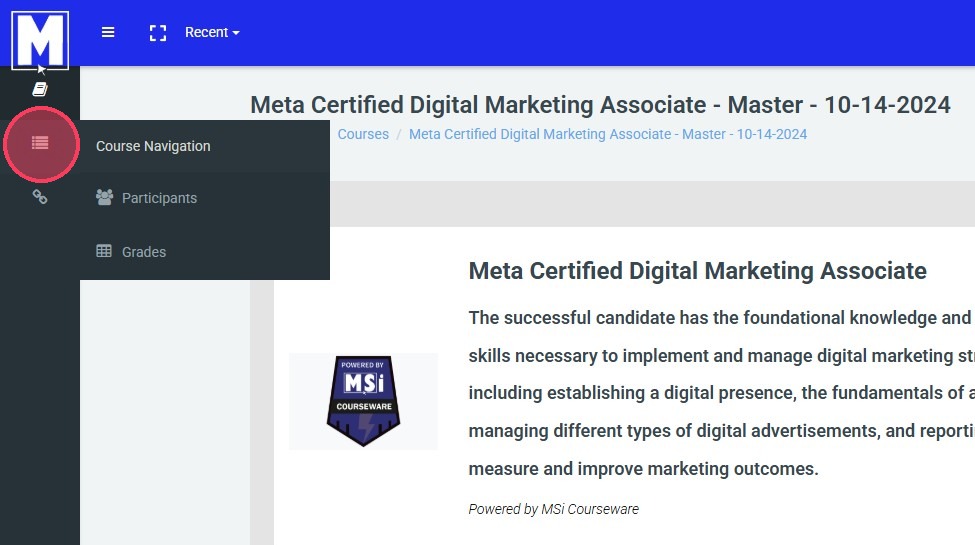
2. Click the 3 lines on the left of your screen in order to navigate to participants.
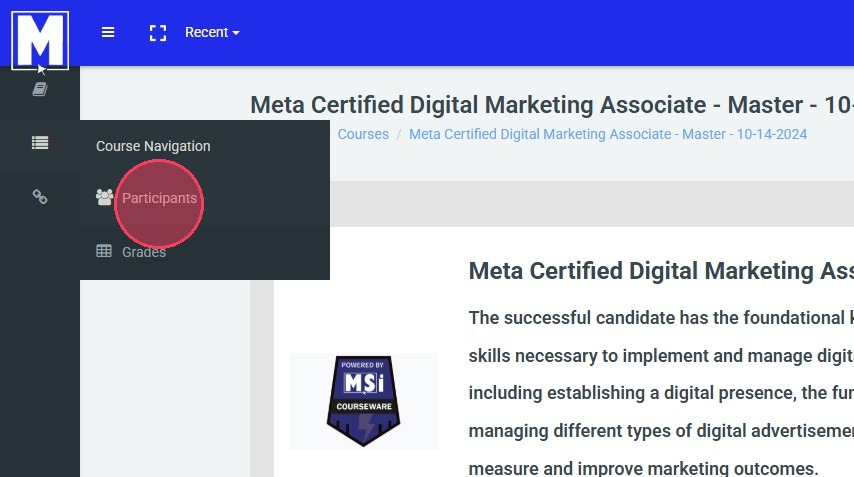
3. Click "Participants"
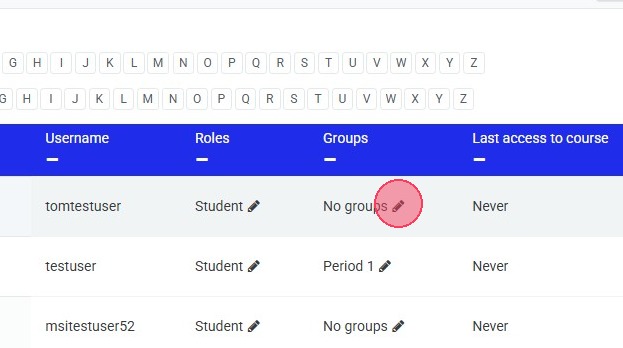
4. Find any student's name, click on the pencil icon under the "Groups" column.
5. Drop down or type the group you need your student to be in.
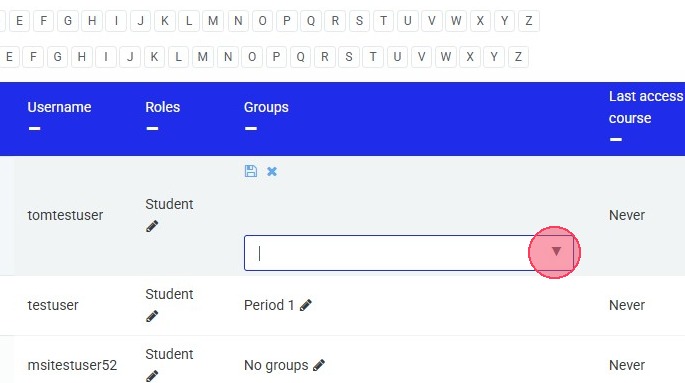
6. Choose desired group.
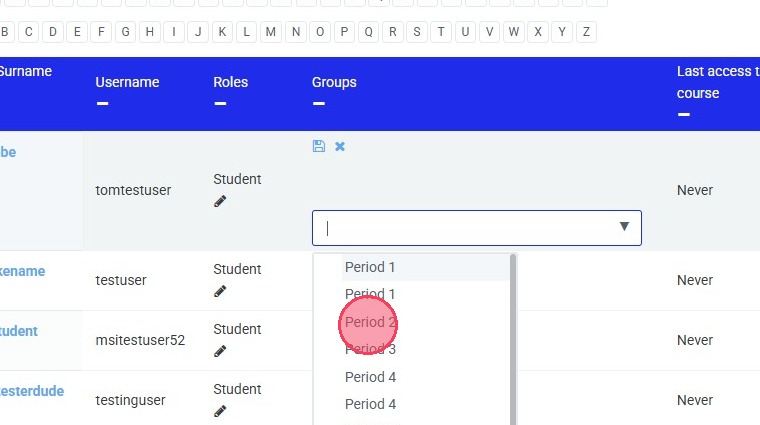
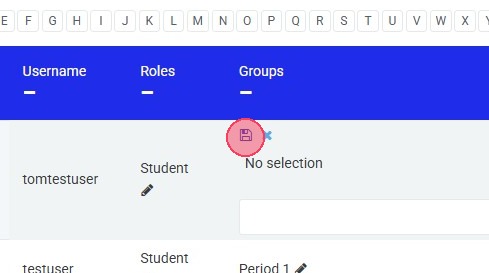
7. Make sure to click the "Save" icon.
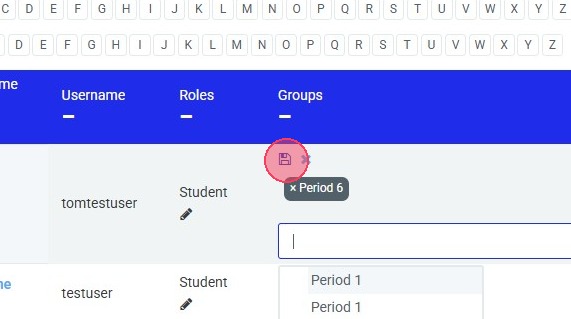
To Remove Your Student from a Group:

1. In order to remove a student from a group, click the pencil icon.
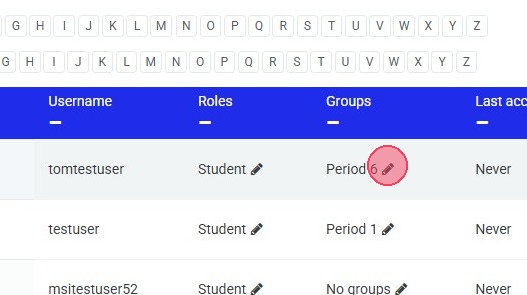
2. Click "×"
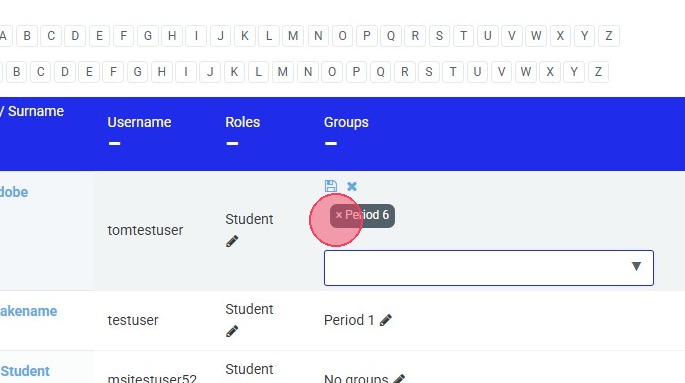
3. Make sure to click the "Save" icon

    • Related Articles

    • Creating Groups

      How to Create Groups within Your Course 1. Navigate to your course. 2. Click the 3 lines to the left of your screen. 3. Click "Participants" 4. Click this gear icon for the drop down menu. 5. Click "Groups" 6. Click "Create group" 7. Click the "Group ...
    • Editing the Period Selector

      How to Add and Remove a Group from the Period Selector. 1. Navigate to your course. 2. Click "Choose Your Period Here" 3. Click the gear icon to reveal the drop-down menu. 4. Click "Edit settings" 5. Choose the groups you wish to have as an option ...
    • Adding Access Restrictions

      Adding Access Restrictions Note: Not all activities support access resection. Access Restrictions are supported on Quizzes, Project Quizzes, SBAs, Labs, and Topics. They are not supported by stand alone knowledge checks and 'slide style' case ...
    • Changing Quiz Attempts

      Note: Remember to save your changes before exiting the settings page. MSi - Changing Quiz Attempts Visit your course homepage. In the top right, select "Turn editing on". Scroll to the desired quiz. Select the gear icon for that quiz. Select "Edit ...
    • MSi ACA Quick Start Guide to In Application Activities

      MSI ACA QUICK START GUIDE TO INAPP ACTIVITIES & INFORMATION InApp and Simulation Activities: Information Simulation Practice and Quiz activities: Simulations are web-based and do not require Adobe Photoshop, Illustrator, or InDesign installed. Ideal ...