Adobe In-App File Extension Resolution
If you are experiencing an issue with the Adobe Panel where the activity is not validating please refer to this solution.
In most installations, users encounter no issues. However, for those who do experience this specific problem, we've developed a solution.
Please see the following instructions for a fix that should resolve your issue with the MSi Adobe Courseware. A temporary folder needs to be writable by our application inside each user’s “Roaming” folder. An empty folder named “msi” needs to be created.
Please note that in our recent testing we have found that the fix does not require an administrative account. This is a one-time per user fix that should resolve the issue.
In our research we have found that certain windows environments are restricting our application from creating the folder on its own. Once the “msi” folder is created the application should work as normal.
Windows 10/11 Instructions
1. Download the Script
a. Script
2. Navigate to your Downloads Folder
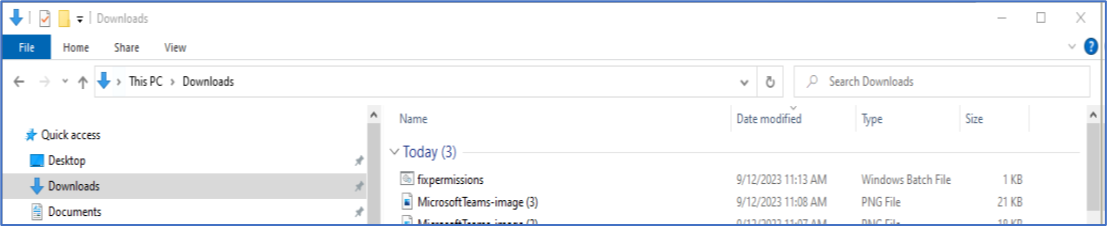
3. Right click on the “fixpermissions” File and Select Open
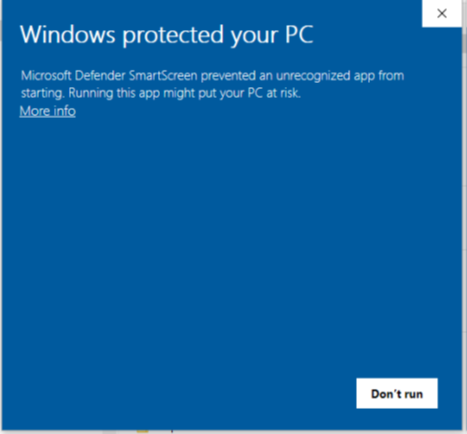
4. If you receive a “Windows Protected your PC” message, Select More info
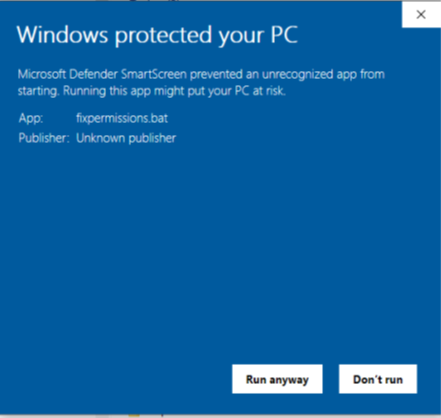
5. Select “Run anyway”
6. Navigate to “C:\Users\[user]\AppData\Roaming” to verify the “msi” Folder was downloaded
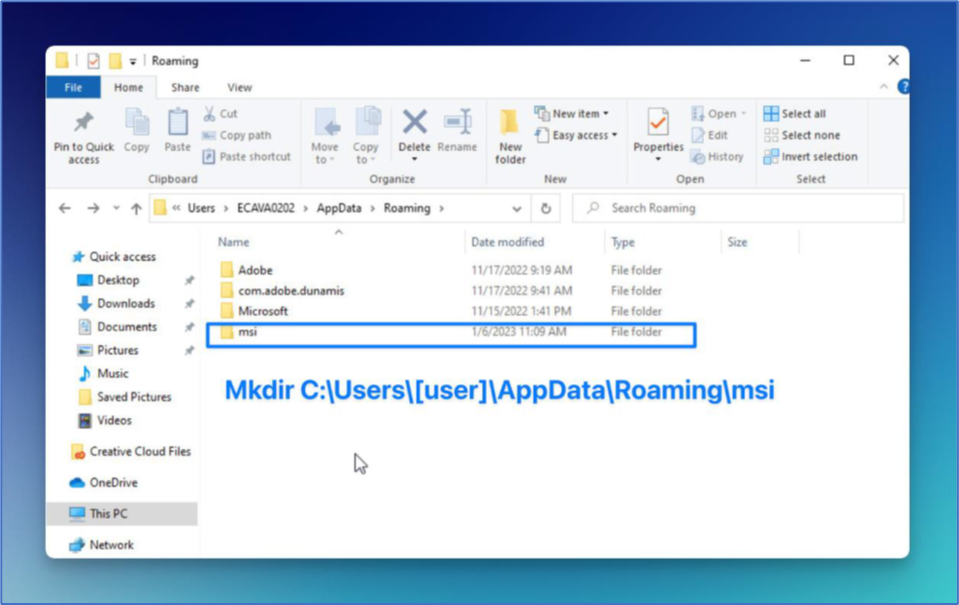
This can be done manually by using the Windows File Manager to create the folder as well.
Adobe In-App File Extension Resolution
In most installations, users encounter no issues. However, for those who experience a specific problem, the following solution has been developed for the MSi Adobe Courseware.
A writable temporary folder must exist in each user’s “Roaming” directory. An empty folder named “msi” needs to be created.
Recent testing confirms the fix does not require an administrative account. This is a one-time per user fix to resolve the issue. Certain Windows environments restrict the application from creating this folder automatically. Once created, the application should function as expected.
Windows 10/11 Instructions
- Download the Script.
- a. Script
- Navigate to your Downloads Folder.
- Right click on the “fixpermissions” file and select Open.
- If you receive a “Windows Protected your PC” message, select “More info”.
- Select “Run anyway”.
- Verify the folder:
- Navigate to
C:\Users\[user]\AppData\Roamingand check that a folder namedmsiexists.
- Navigate to
If Needed: Create Manually
This can also be done manually using Windows File Manager:
Go to C:\Users\[user]\AppData\Roaming and create a folder named msi.
Related Articles
Installing the Adobe In-App Panel
Installing Adobe In-App InApp Installation requires the Creative Cloud Desktop Application to download. If you already have Creative Cloud Desktop Application installed, you can skip this step. 1. Click "Stock & Marketplace" 2. Click "Manage Plugins" ...Alternate Adobe InApp Installation
If you are experiencing difficulty installing the Adobe InApp through the traditional method (see article: Install Adobe InApp via Creative Cloud) please follow these instructions or see your IT department for additional help. Begin by downloading: ...MSi ACA Quick Start Guide to In Application Activities
MSI ACA QUICK START GUIDE TO INAPP ACTIVITIES & INFORMATION InApp and Simulation Activities: Information Simulation Practice and Quiz activities: Simulations are web-based and do not require Adobe Photoshop, Illustrator, or InDesign installed. Ideal ...Install MOS InApp
Installing MOS InApp Extension Steps to Begin an InApp Activity Scroll down to any Practice InApp Activity in your course. Click "Click here to download" to get the MOS Start file. Download the file, then open it inside Microsoft Word. Once opened, ...MS Office In-App Panel Compatibility
Our In-Office panel requires Office 365 or Office 2021 or higher. MS Office 2019 is not supported with volume licensing only retail versions with WebView2 installed. We suggest you complete the activities by using the simulated versions or upgrade to ...